Additional tabs
The additional tabs show further subordinate elements and links to other elements.
The additional tabs displayed depend on the type of the selected element. Additional tabs that do not contain data and cannot be edited are hidden for clarity.
Responsible
An element can have responsible agents (persons, groups, or posts). These attributions determine which elements can be edited by which persons and which persons are involved in which approval processes.
Add attributions
Attributions of the selected element are specified in the tab "Responsible".

A new attribution of the selected element is added by clicking the icon "+" (or by selecting "Add Attribution..." in the menu).
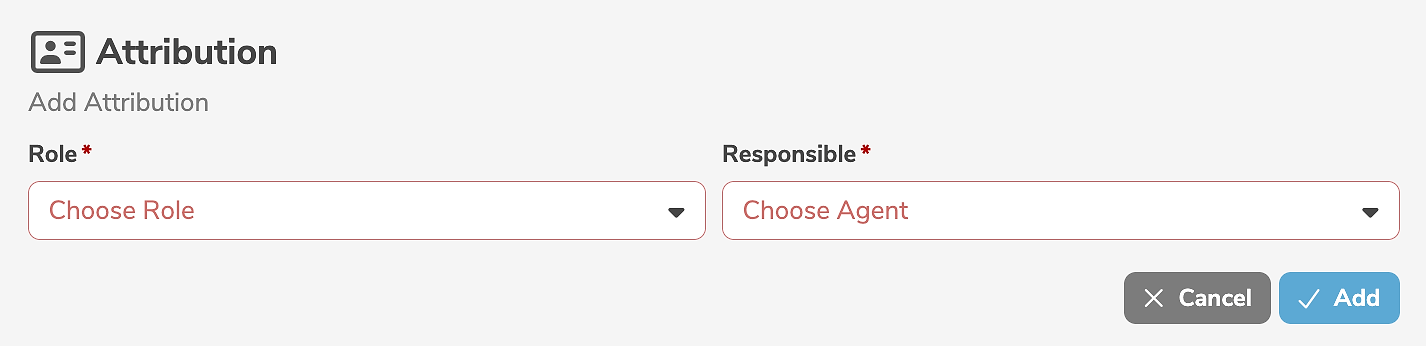
It is mandatory to select a role as well as a responsible agent (person, group, or post) from the DX organization.
Clicking "Add" creates the attribution.
Acting in the selected role, the selected agent (person, group, or post) is responsible for the element and all subordinate elements. If the selected agent is not a person (but rather a group or a post), responsibility is automatically delegated to the underlying specific persons.
Edit attributions
An attribution is edited by clicking the edit icon (or by selecting "Edit Attribution" in the menu) next to the attribution.
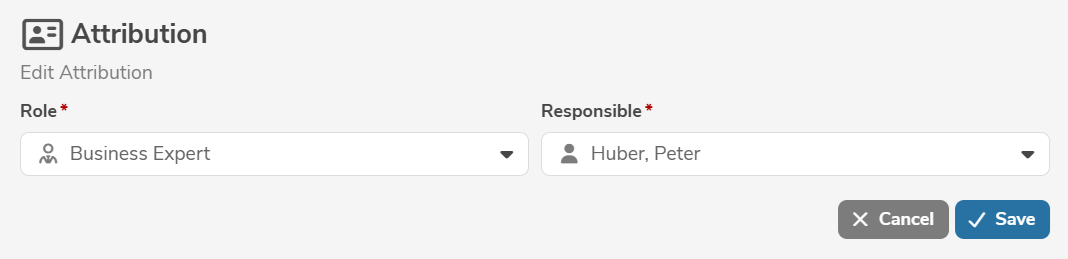
Clicking "Save" applies the changes.
An attribution can be deleted by selecting "Delete Attribution" in the menu next to the attribution.
An attribution inherited from a superordinate element cannot be edited or deleted in the subordinate element.
Indicators
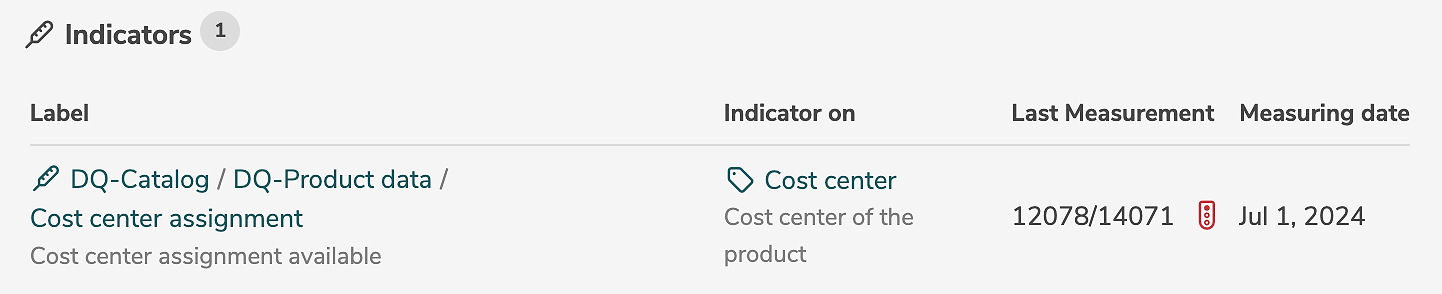
An element can be assigned to indicators.
The assignment of an element to an indicator can be specified in the respective indicator.
Assignments of the selected element are displayed in the tab "Indicators".
Datasets
An element can be a component of datasets or subdatasets.
The component can be specified in the respective dataset or subdataset.
Datasets or subdatasets, of which the selected element is a component, are displayed in the tab "Datasets".

The entries can be expanded to display subordinate elements of the selected element, which are also components.
Range of
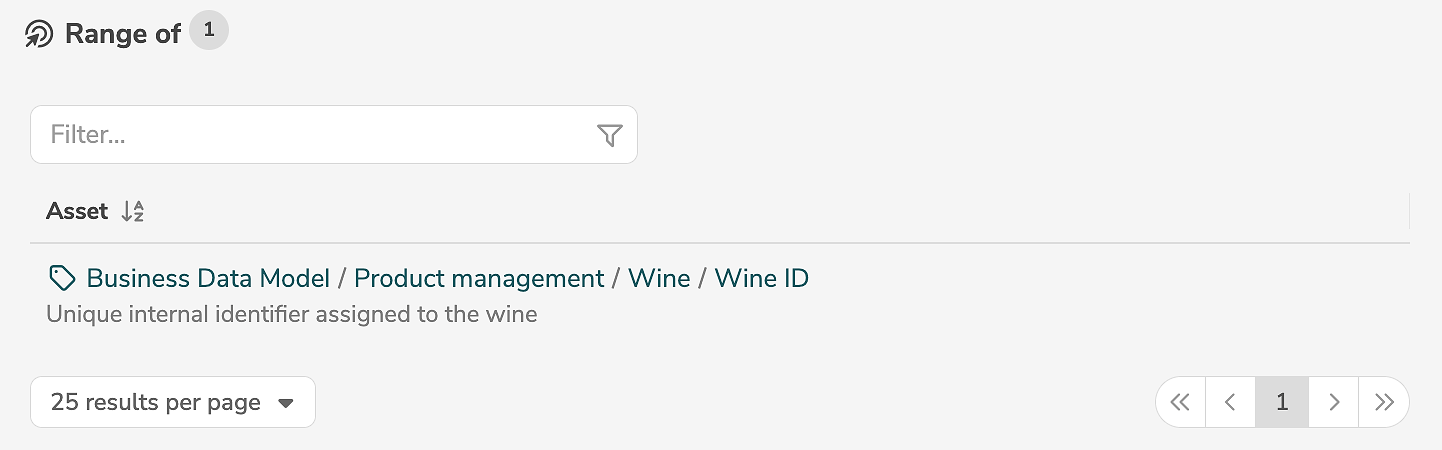
Reference objects and data domains as well as enumerations and data types can be used to restrict the value range of other elements.
The value range of an element can be specified in the respective element.
Elements, whose value range is restricted by the selected element, are displayed in the tab "Range of".
Systems
An element can be deployed in a system for execution or storage.
Add deployments
Deployments of the selected element are specified in the tab "Systems".

A new deployment of the selected element is added by clicking the icon "+" (or by selecting "Add Deployment..." in the menu).
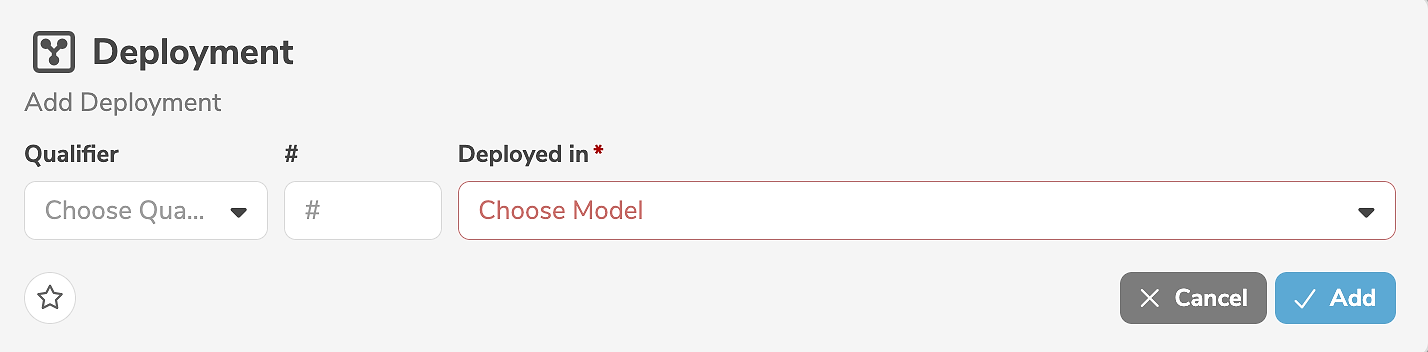
It is mandatory to select a system from a system catalog.
In addition, a qualifier and an order can be specified.
Clicking  marks the deployment as favorite.
Clicking "Add" creates the deployment.
Edit deployments
A deployment is edited by clicking the edit icon (or by selecting "Edit Deployment" in the menu) next to the deployment.
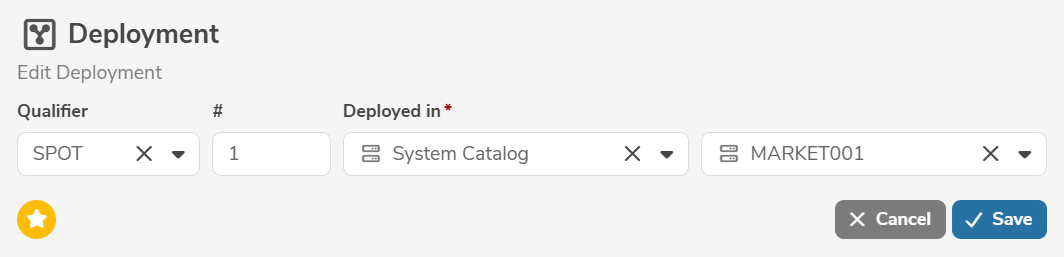
Clicking "Save" applies the changes.
A deployment can be deleted by selecting "Delete Deployment" in the menu next to the deployment.
Derived from
An element can have derivations from other elements.
Add derivations
Elements, from which the selected element has a derivation, are specified in the tab "Derived from".

A new derivation is added by clicking the icon "+" (or by selecting "Add Derivation..." in the menu).
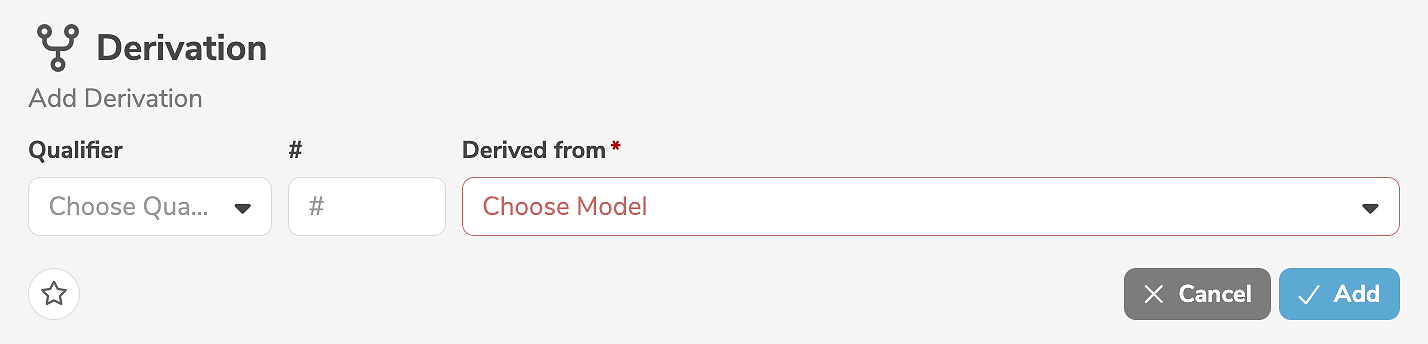
It is mandatory to select an element from a model.
In addition, a qualifier and an order can be specified.
Clicking marks the derivation as favorite.
Clicking "Add" creates the derivation.
Edit derivations
A derivation is edited by clicking the edit icon (or by selecting "Edit Derivation" in the menu) next to the derivation.
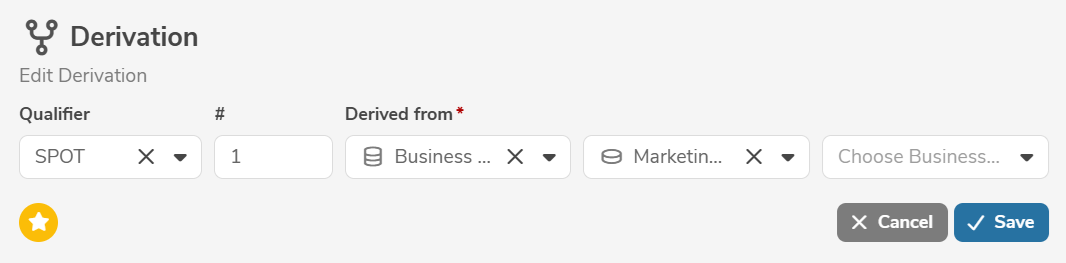
Clicking "Save" applies the changes.
A derivation can be deleted by selecting "Delete Derivation" in the menu next to the derivation.
Derived to
An element can have derivations to other elements.
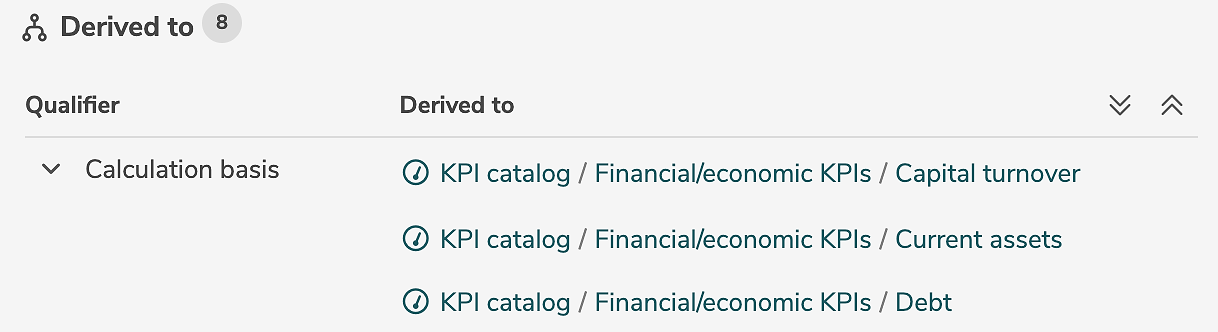
Elements, to which the selected element has a derivation, are automatically determined based on the elements that have a derivation from the selected element.
Elements, to which the selected element has a derivation, are displayed in the tab "Derived to".
Transforms from
An element can have transformations from other elements.
Add transformations
Transformations are specified in the tab "Transforms from".
Edit transformations
A transformation is edited in the main panel of the transformation.
Transforms to
An element can have transformations to other elements.
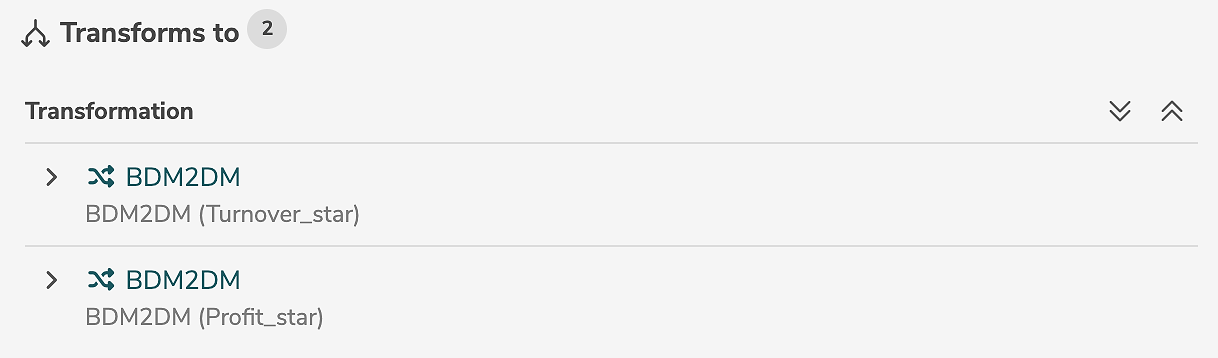
Elements, to which the selected element has a transformation, are automatically determined based on the elements that have a transformation from the selected element.
Elements, to which the selected element has a transformation, are displayed in the tab "Transforms to".
Projects
An element can be used in projects.
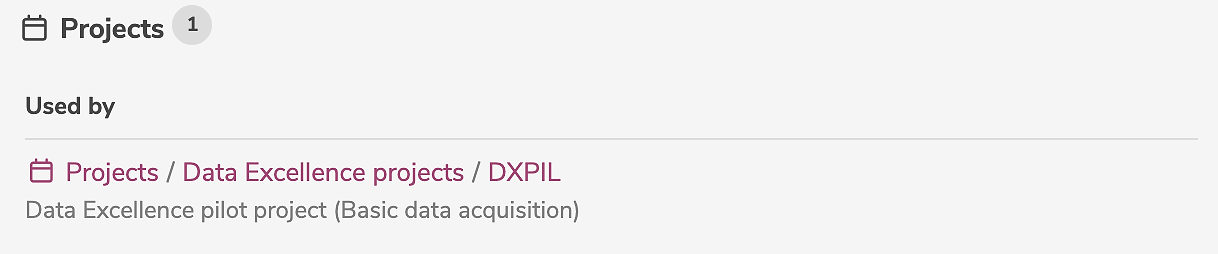
The usage of an element in a project must be specified in the respective project.
The usages of the selected element in projects are displayed in the tab "Projects".
Processings
An element can be used in processings.
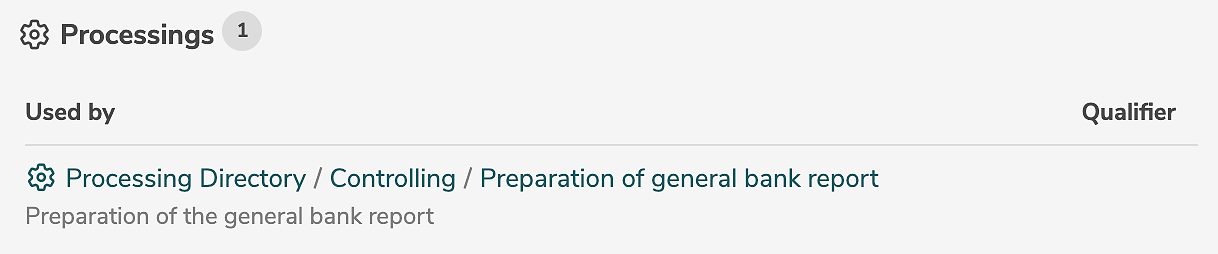
The usage of an element in a processing must be specified in the respective processing.
The usages of the selected element in processings are displayed in the tab "Processings".
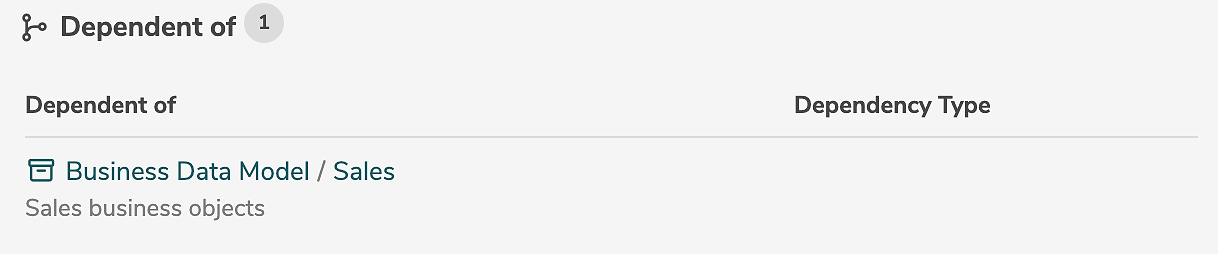
Dependent of
An element can be dependent of other elements.
Elements, that are dependent of the selected element, are automatically determined based on the elements that depend on the selected element.
Elements, that are dependent of the selected element, are displayed in the tab "Dependent of".
Depends on
An element can depend on other elements.
Add dependencies
Elements, on which the selected element depends, are specified in the tab "Depends on".

A new dependency of the selected element is added by clicking the icon "+" (or by selecting "Add Dependency..." in the menu).
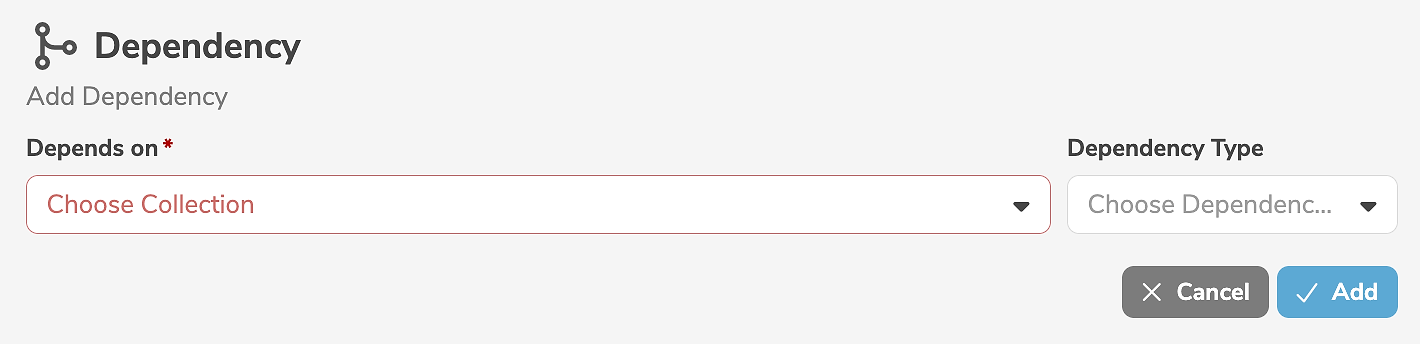
It is mandatory to select an element from the model. The dependency may be qualified with a dependency type, if required.
Clicking "Add" creates the dependency.
Edit dependencies
A dependency is edited by clicking the edit icon (or by selecting "Edit Dependency" in the menu) next to the dependency.
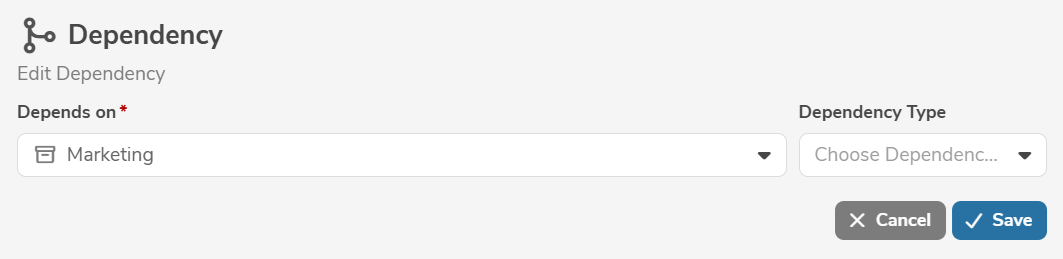
Clicking "Save" applies the changes.
A dependency can be deleted by selecting "Delete Dependency" in the menu next to the dependency.
Rule Violations
All rules, that are usually checked when an element is created, are regularly and automatically checked in the background, to ensure the integrity and consistency of the metadata.
If rule violations exist for the selected element, the blinking icon  is displayed in the title bar.
Rule violations of the selected element are displayed in the tab "Rule Violations".
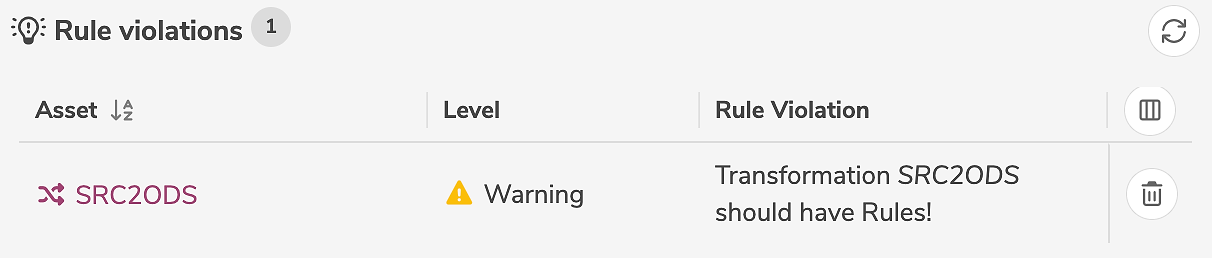
The rule violations of all elements are displayed on the tenant page.
Clicking on the icon  rechecks the existing rule violations.
The frequency or the time of the automatic checks can be configured on the server. Administrators can manually restart the check in the dashboard.
Status
An element has a specific status within a workflow. During processing, status transitions occur from one status to another.
The workflow of an element (and followingly the possible statuses and status transitions) are determined by the models assigned to the workflow.
Edit status
The status of the selected element is specified in the tab "Status".
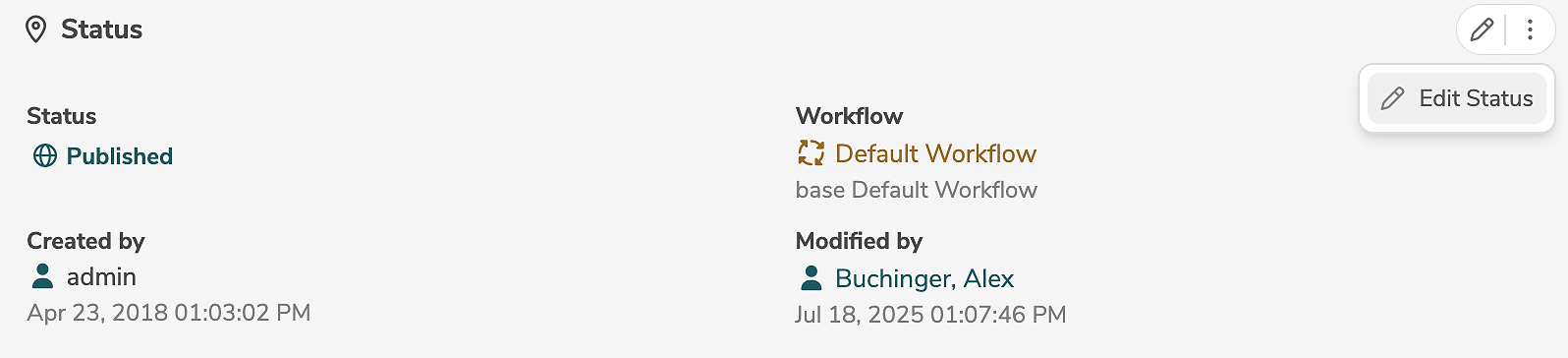
The status of the selected element is edited by clicking the edit icon (or by selecting "Edit Status" in the menu).
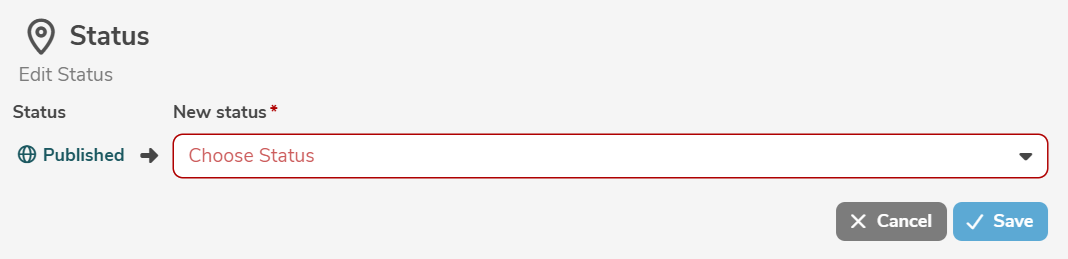
Clicking "Save" applies the changes.
When a status transition is triggered, the workflow determines whether or not an approval process is required for this transition. If required, an approval is automatically created and a vote is initiated. The persons eligible to vote are automatically determined based on the roles defined in the workflow and the roles assigned in the responsibility of the element.
The status may only be modified by users or persons who are authorized to do so based on their role and responsibilities as well as the underlying workflow.
Statistics
Statistics show the number of subordinate elements, grouped by element types and statuses.
The statistics of the selected element are displayed in the tab "Statistics".
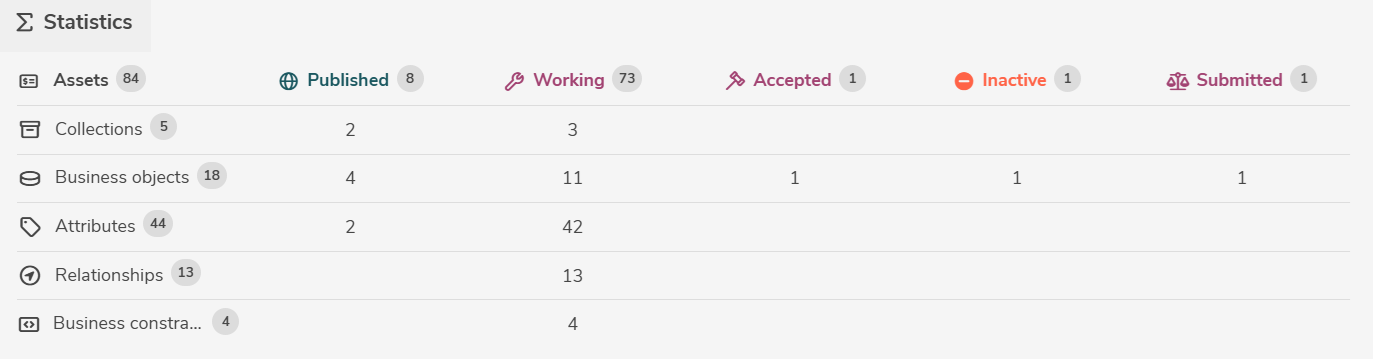
Clicking on an entry in the tables opens the advanced search to display the relevant elements.
The statistics correspond to the report Collection Statistics.
History
Every modification of an element automatically creates a new version of the element.
Modifications made in the user interface as well as modifications made through interfaces or upload create a new version of the element.
Historic versions of the selected element are displayed in the tab "History".
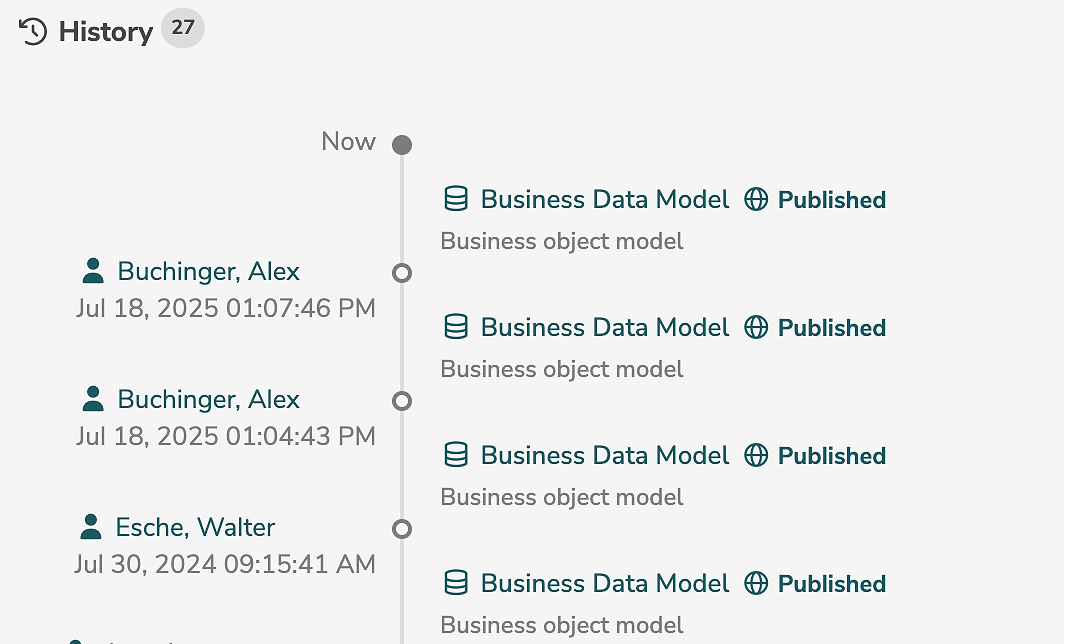
For each historic version, the modification time and the person responsible are displayed.
Clicking on a specific historic version starts the time travel. The entire application switches to the selected point in time, whereby links to other elements as well as their state at the selected point in time can be traced.