Issues
Issues represent trackable units of work that describe functional requirements (change requests, improvements, etc.).
An issue can be associated with assets that are impacted by the issue. Participating agents from the DX organization who are involved in and responsible for processing the issue can be assigned. An issue can be related to other issues to represent time-related or content-related dependencies and relationships.
To search for specific issues, the issue search can be opened from the sidebar.
Add issues
Issues impacting the selected asset are specified in the additional tab "Issues".

Closed issues are not displayed in the additional tab "Issues" of the selected asset. Closed issues are only displayed in the issue search.
A new issue impacting the selected asset is added by clicking the icon "+" (or by selecting "Add Issue..." in the menu).
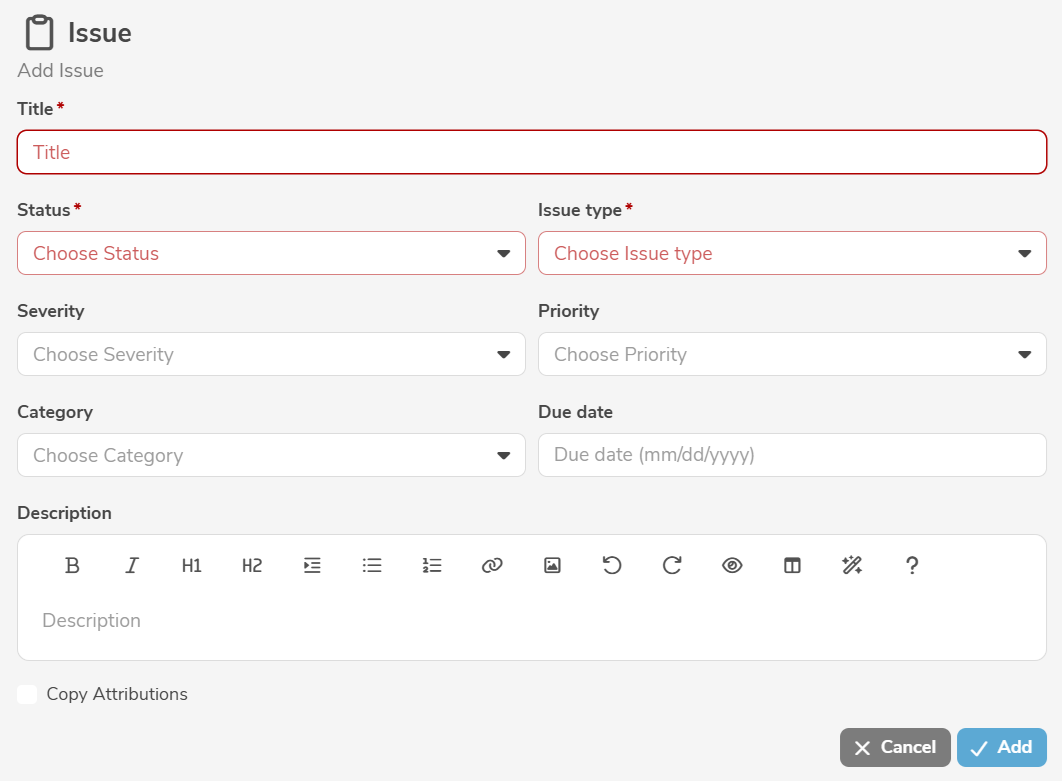
It is mandatory to assign a title, a status, and an issue type (change request, improvement, bug, or task) to the issue. In addition, a severity, a priority, a category, a due date, and a description can be specified. If required, the agents responsible for the selected asset can be automatically copied as issue participants.
When an issue impacting the selected asset is created, an asset association to the selected asset is automatically created.
Clicking "Add" creates the issue.
Additional, customer-specific issue types can be added using annotations.
Edit issues
An issue is edited in the main panel of the issue, by clicking the edit icon (or by selecting "Edit Issue" in the menu).
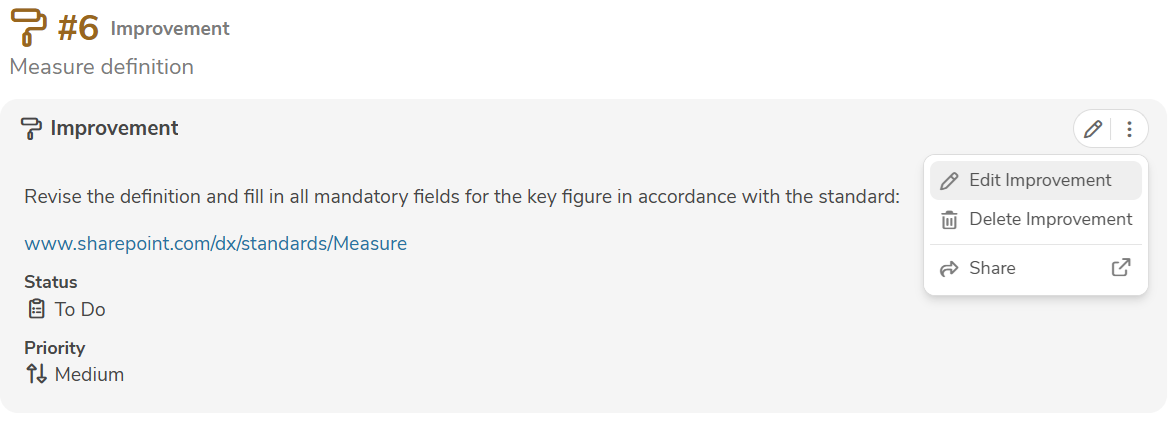
The edit mode allows the modification of all standard input fields. Additional, customer-specific fields can be added using annotations and will then also appear in the edit mode.
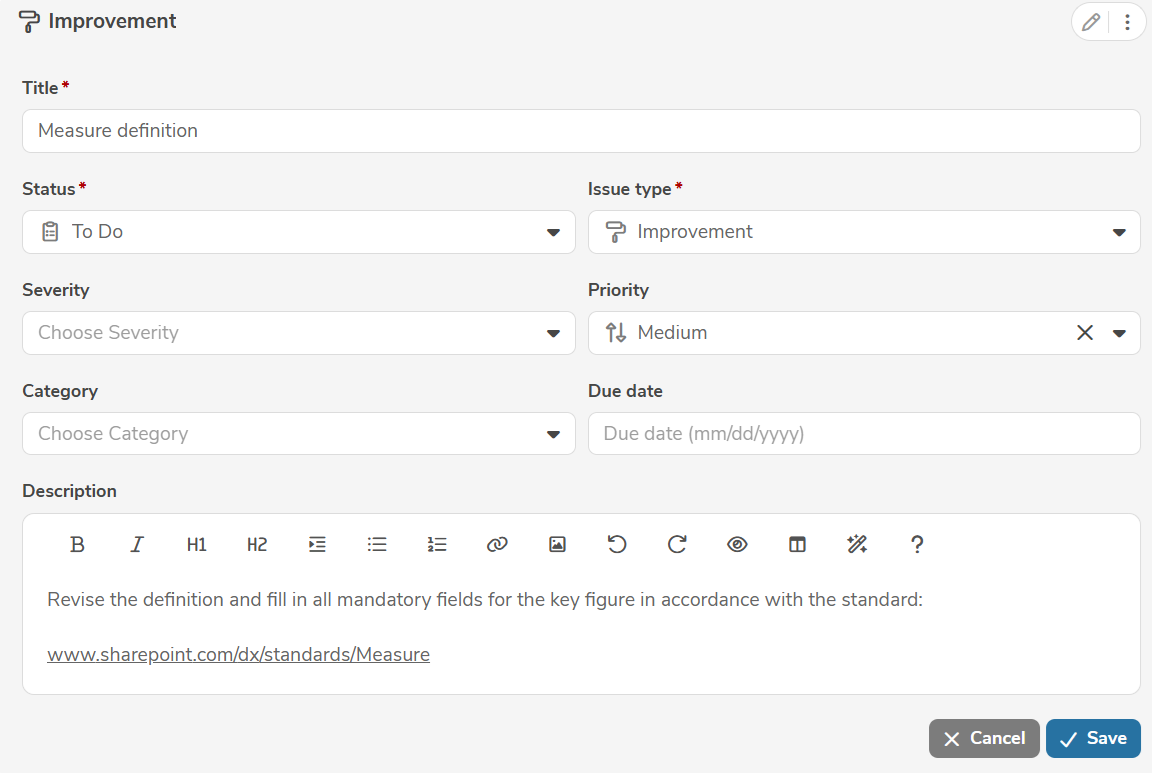
Clicking "Save" applies the changes.
An issue can be deleted in the main panel of the issue, by selecting "Delete Issue" in the menu.
Add asset associations
An issue can be associated with assets that are impacted by the issue.
Asset associations for the selected issue are specified in the tab "Asset associations".

A new asset association for the selected issue is added by clicking the icon "+" (or by selecting "Add Asset association..." in the menu).
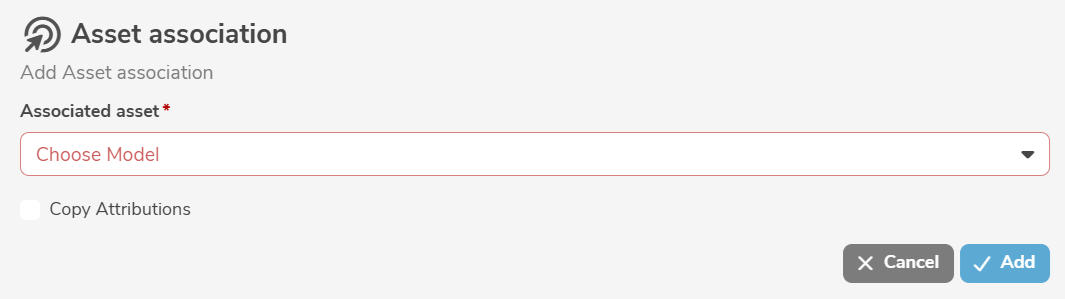
It is mandatory to select an asset from a model. If required, the agents responsible for the asset can be automatically copied as issue participants.
Clicking "Add" creates the asset association.
Edit asset associations
An asset association is edited by clicking the edit icon (or by selecting "Edit Asset association" in the menu) next to the asset association.
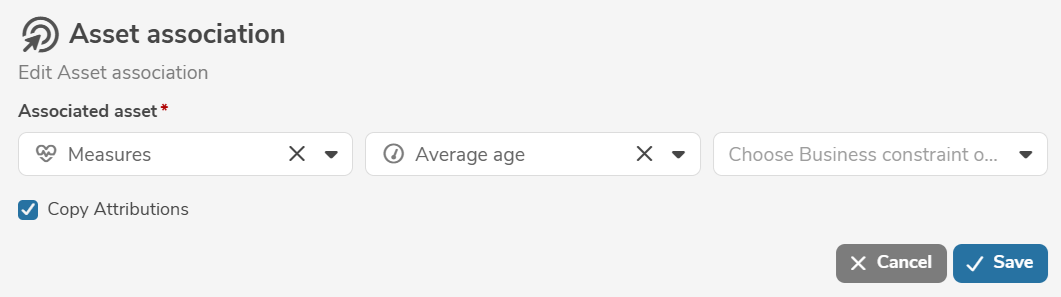
Clicking "Save" applies the changes.
An asset association can be deleted by selecting "Delete Asset association" in the menu next to the asset association.
Add participants
Participating agents from the DX organization who are involved in and responsible for processing the issue can be assigned.
Participants of the selected issue are specified in the tab "Participants".

A new participant of the selected issue is added by clicking the icon "+" (or by selecting "Add Participant..." in the menu).
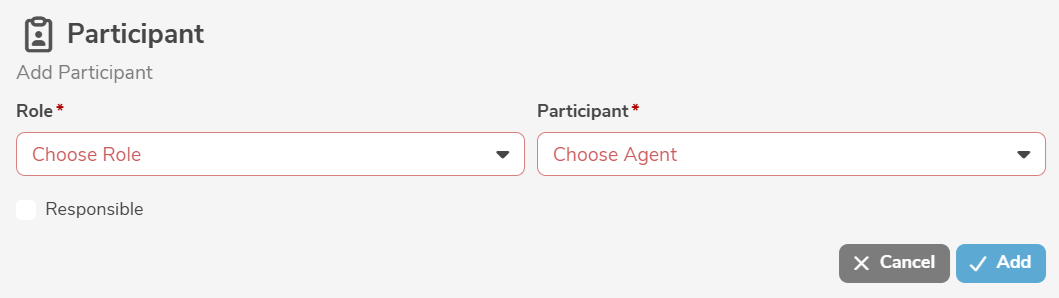
It is mandatory to select a role and an agent (person, group, or post) from the DX organization. If required, the participant can be marked as responsible for the issue.
At most one participant can be marked as responsible. If a participant is marked as responsible, any previous markings are removed.
Clicking "Add" creates the participant.
Edit participants
A participant is edited by clicking the edit icon (or by selecting "Edit Participant" in the menu) next to the participant.
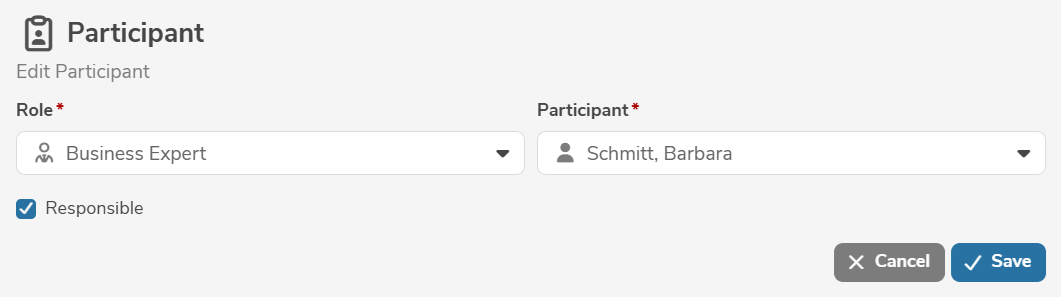
The marking as responsible can be set or removed by selecting "Mark as Responsible" or "Unmark as Responsible" in the menu next to the participant.
Clicking "Save" applies the changes.
A participant can be deleted by selecting "Delete Participant" in the menu next to the participant.
Add issue relations
An issue can be related to other issues to represent time-related or content-related dependencies and relationships.
Issue relations of the selected issue are specified in the tab "Issue relations".

A new issue relation of the selected issue is added by clicking the icon "+" (or by selecting "Add Issue relation..." in the menu).
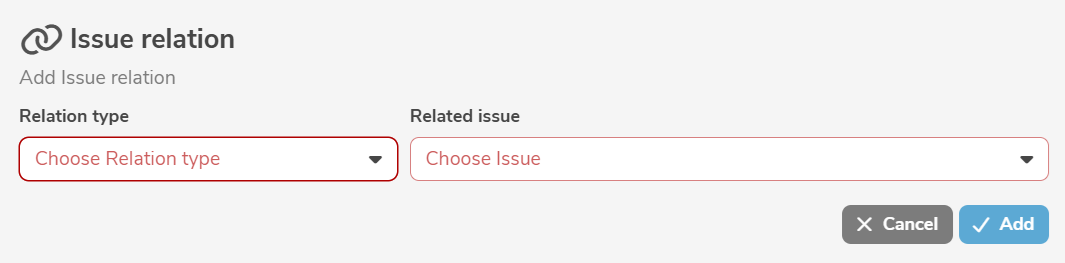
It is mandatory to select a relation type and a related issue.
Clicking "Add" creates the issue relation.
Edit issue relations
An issue relation is edited by clicking the edit icon (or by selecting "Edit Issue relation" in the menu) next to the issue relation.
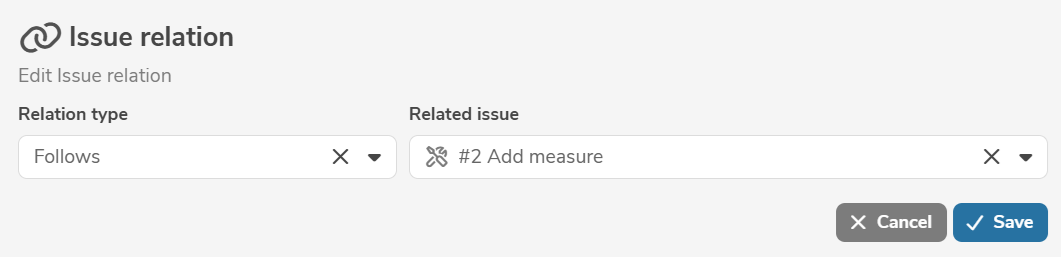
Clicking "Save" applies the changes.
An issue relation can be deleted by selecting "Delete Issue relation" in the menu next to the issue relation.