Approvals
The workflow determines whether or not an approval process is required for a status transition. If required, an approval is automatically created and a vote is initiated.
The persons eligible to vote are automatically determined based on the roles defined in the workflow and the roles assigned in the responsibility of the element. Users involved in the approval process are informed about the vote with a notification.
To search for specific approvals, the approval search can be opened from the sidebar.
Add approvals
An approval is automatically created, if necessary, when a status transition is triggered for an element. It is not possible to create approvals manually.
A pending approval is displayed in the additional tab "Approval".
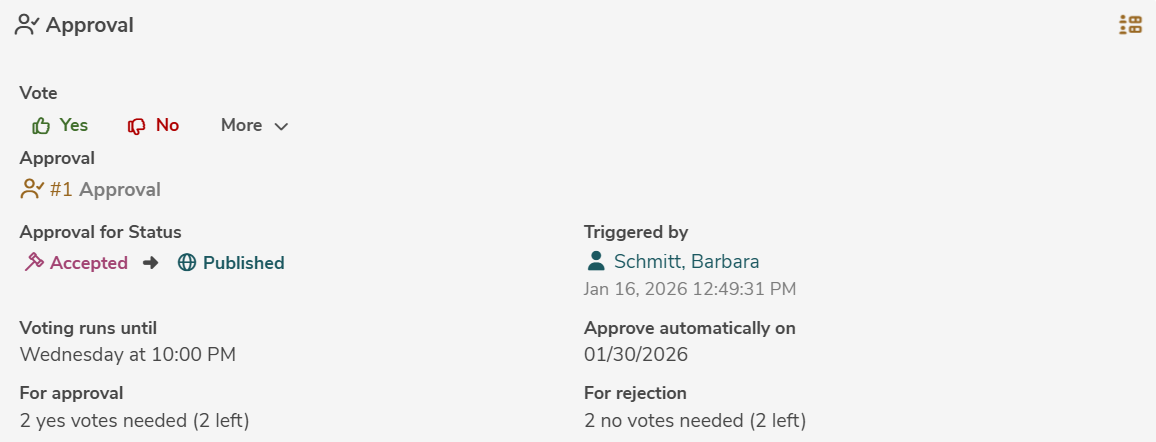
The additional tab "Approval" is only displayed if an approval is pending for the selected element.
The flashing icon  signals that voting is in progress.
A person eligible to vote can participate in the vote by clicking on "Yes" or "No". A vote that has already been submitted can be withdrawn by clicking "Yes" or "No" again. Depending on the defined status transition, additional actions may be possible (e.g. "Approve Instantly", "Reject instantly").
An element may not be modified, as long as an approval is pending.
Edit approvals
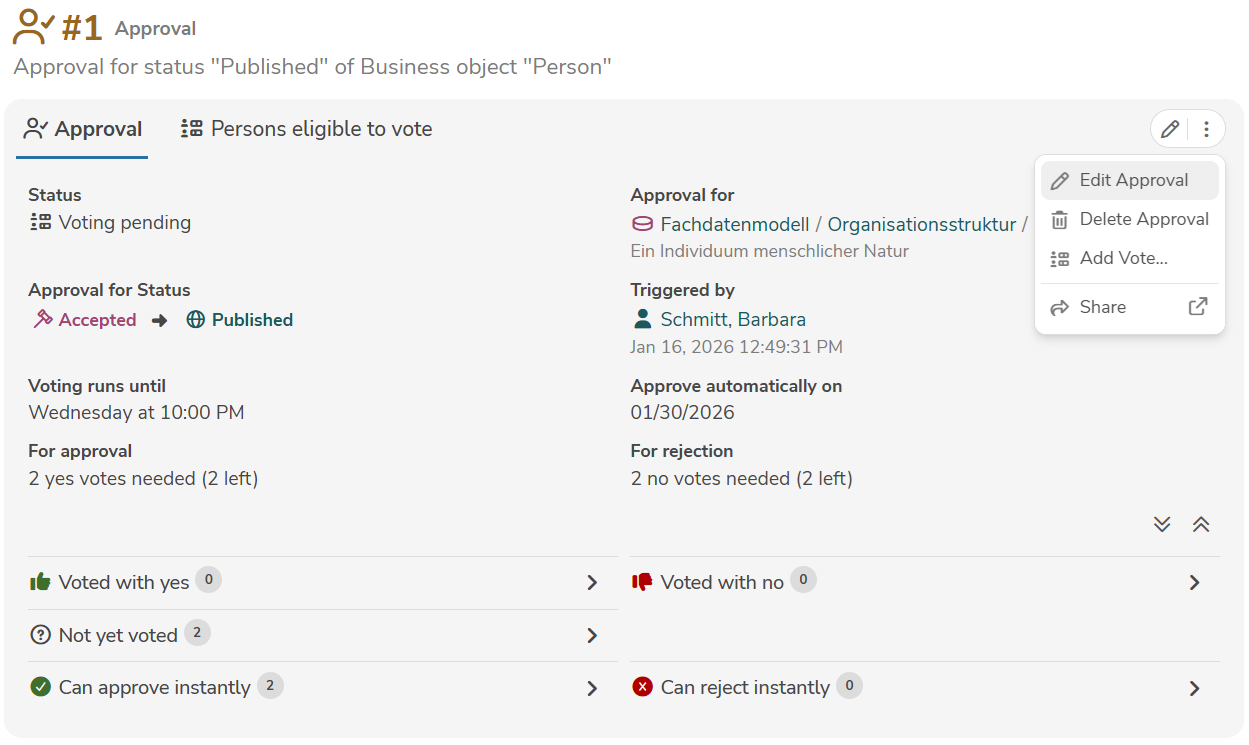
An approval is edited in the main panel of the approval, by clicking the edit icon (or by selecting "Edit Approval" in the menu).
The edit mode allows the modification of all input fields.
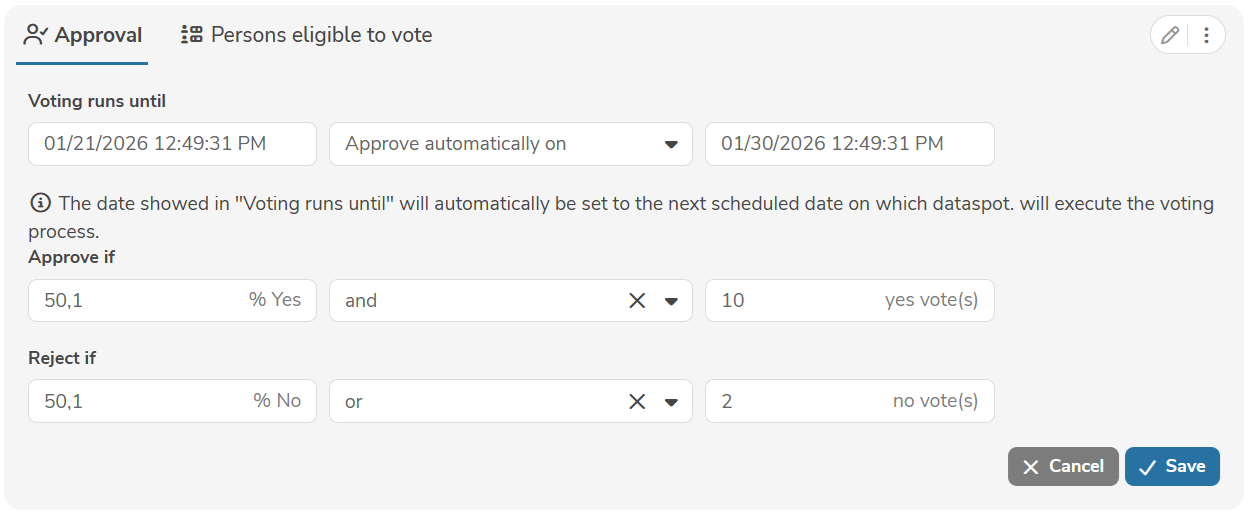
Clicking "Save" applies the changes.
An approval can be deleted in the main panel of the approval, by selecting "Delete Approval" in the menu.
Add votes
At the time of creating an approval, the persons eligible to vote and their possible actions are automatically determined based on the roles defined in the workflow and the roles assigned in the responsibility of the element.
The persons eligible to vote can be added and deleted retrospectively.
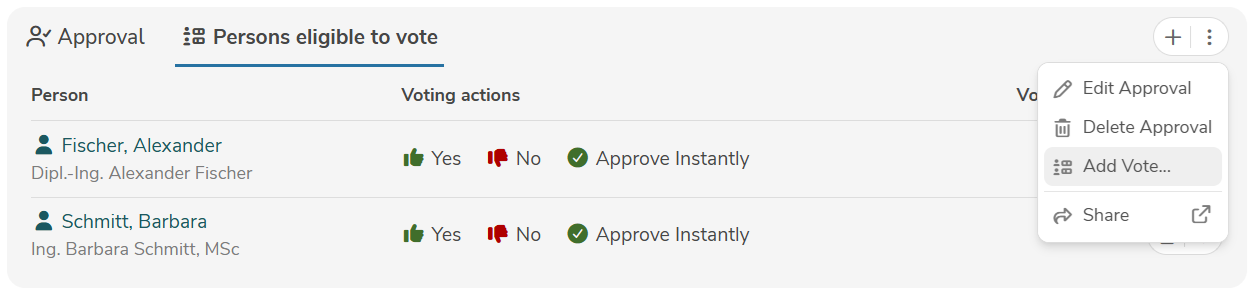
A new vote is added by clicking the tab "Persons eligible to vote" and the icon "+" (or by selecting "Add Vote..." in the menu).
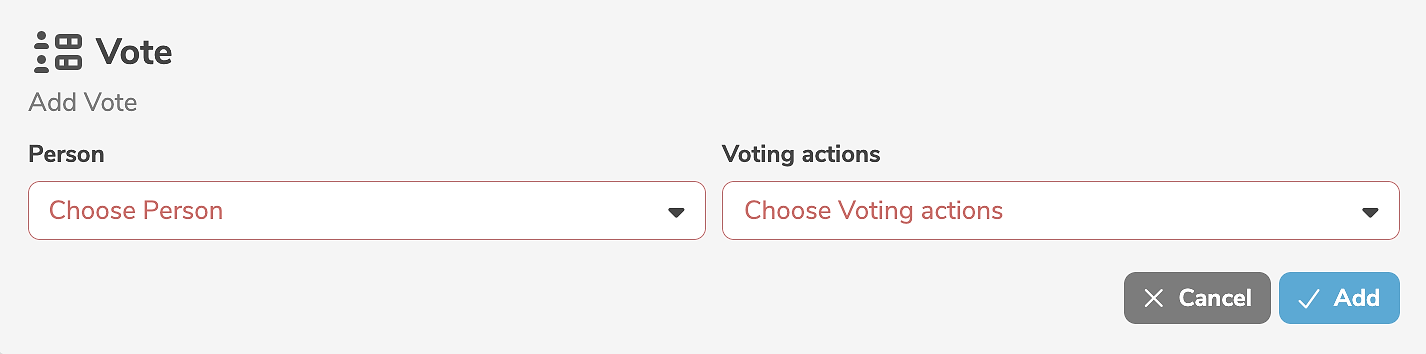
It is mandatory to select a person and their possible voting actions.
Clicking "Add" creates the vote.
A vote can be deleted by clicking the delete icon (or by selecting "Delete Vote" in the menu) next to the vote.