Approval search
The approval search can be used to search for approvals. The approval search can be opened from the sidebar.
Closed approvals, that are no longer displayed in the additional tab "Approval", can still be found using the approval search. The closed approvals of an element can also be displayed by selecting "Show Closed Approvals" in the menu of the status area.
Approval search
To search for approvals, a search term can be entered in the search field.

The approval search is implemented as a full-text search and searches the following approval properties:
- Label of the associated asset
- Ticket number
The searched text is divided by separators (e.g. spaces, hyphens, and slashes). Only matches from the beginning of a word (i.e. after a separator) are found. Text within a word is not found.
The search results are displayed directly in the preview.
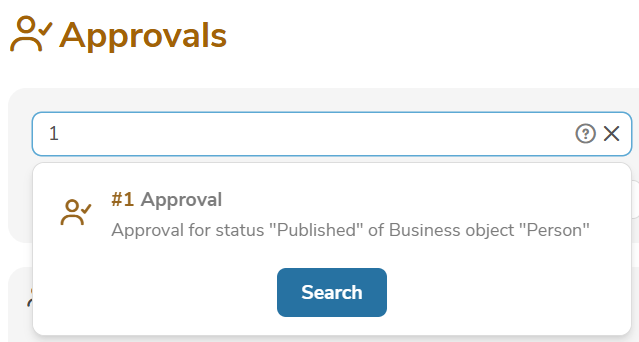
By clicking on the preview a found approval can be opened. By clicking on "Search" all approvals found are displayed and can be browsed.
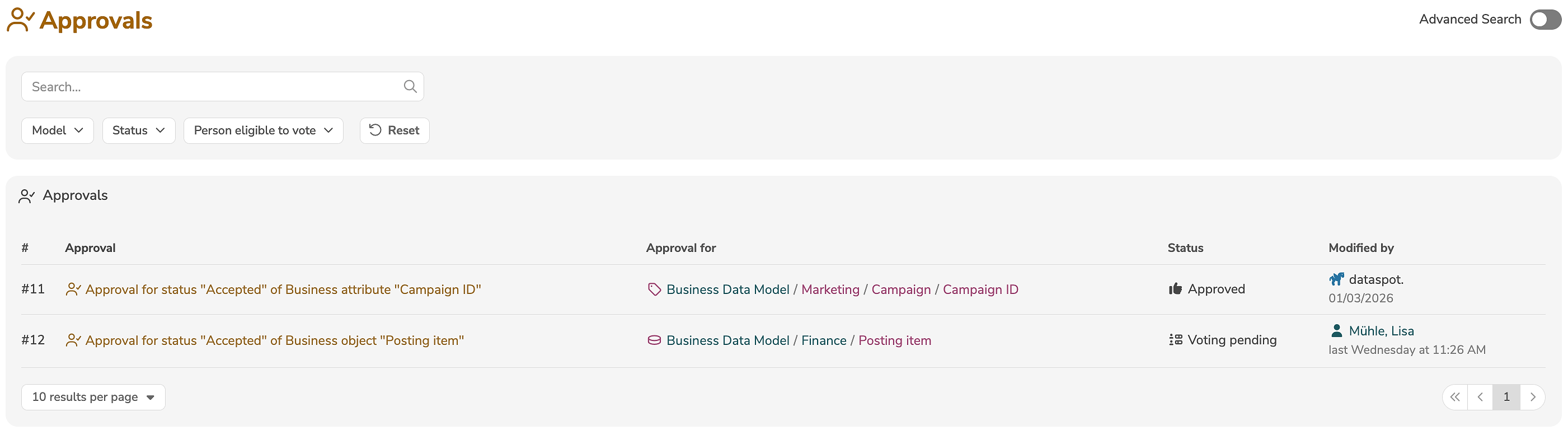
If no search term was entered in the search field, the following filters are applied without a full-text search (i.e. to all approvals).
Filters
In addition, the search results can be filtered according to the following criteria:
| Filter | Description |
|---|---|
| Model | Only display approvals in specific models. |
| Status | Only display approvals with specific statuses. |
| My role | Only display approvals in which the user is involved in a specific role. |
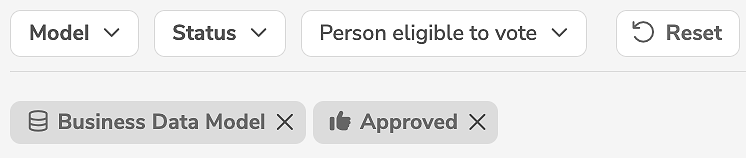
The selected filters are displayed as tiles below the dropdown lists:
Advanced approval search
The advanced approval search can be turned on and off by clicking on the following button:

The advanced approval search allows multiple search conditions to be defined. For example, to display all approvals for which
Date of changeis after08/15/2022,- and the approval is
closed:

In contrast to the normal approval search, in which only a few selected filters are available, arbitrary search conditions can be defined in the advanced approval search. When the advanced approval search is activated, the previously selected filters are automatically applied as search conditions in the advanced approval search.
- Clicking on "+" adds a new search condition.
- Clicking on "-" deletes a search condition.
- Clicking on "Reset" deletes all search conditions.
- Clicking on "Search" displays the found approvals.
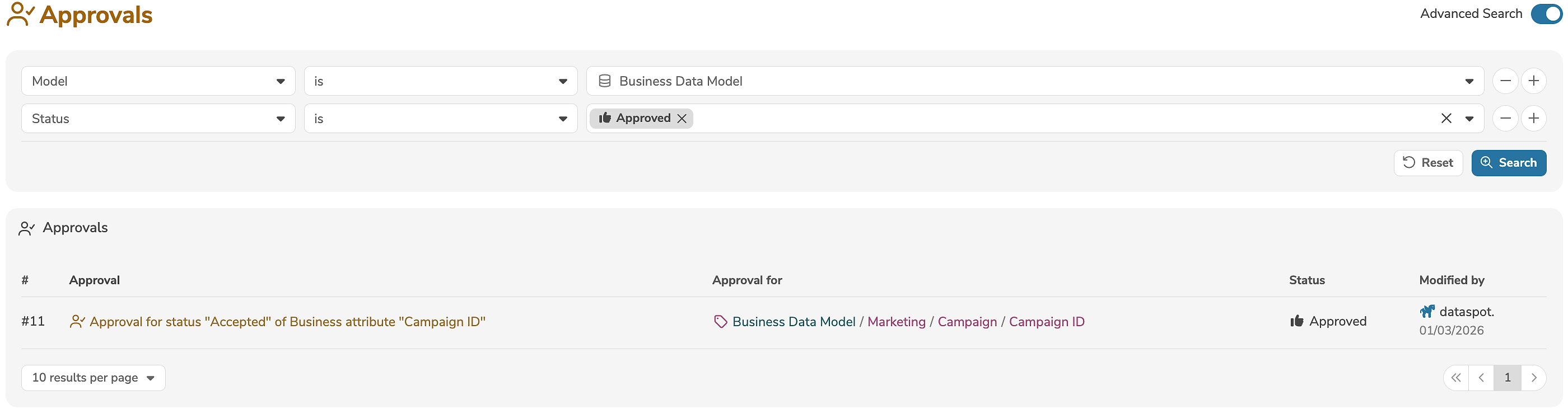
The search result only contains approvals that satisfy all search conditions, i.e. the search conditions are logically conjuncted with AND.
Each search condition evaluates a property of an approval. The property can be selected in the first dropdown list.
The search operator and the value (or pattern), with which the property is to be evaluated, must be specified. Depending on the property, different search operators are available:
| Search operator | Description |
|---|---|
| is | Evaluates if the property is equal to the value. |
| is not | Evaluates if the property is not equal to the value. |
| greater than | Evaluates if the property is greater than the value. |
| less than | Evaluates if the property is less than the value. |
The following special properties are also available:
| Property | Value range | Description |
|---|---|---|
| Search term | Text | Corresponds to the search field (full-text search) of the normal approval search. |
| Approval for | UUID | Evaluates the UUID of the associated asset. |
| Model | Models | Evaluates if the associated asset is in a specific model. |
| Status | Status | Evaluates the approval status |
| Closed | Yes/No | Evaluates if the approval is closed. |
| Ticket number | Number | Evaluates the ticket number. |
| Date of change | Date | Evaluates the date on which the approval was last modified. |
| Modified by | Login ID | Evaluates the user who last modified the approval. |
| Triggered by | Login ID | Evaluates the user who triggered the approval. |
| Id | UUID | Evaluates the UUID of the approval. |