Indicators
A data quality indicator (DQI) determines the quality requirements for data. Indicators contains actual data quality measurements. The assignments to the measured elements are defined in the indicator.
The quality requirements are derived from the business rules, defined by the business units and implemented in cooperation with IT.
To evaluate indicators (e.g. for comparisons), additional elements are often necessary. These elements can be specified as derivations.
Add indicators
Indicators are specified in a quality model in the subpanel of a collection.
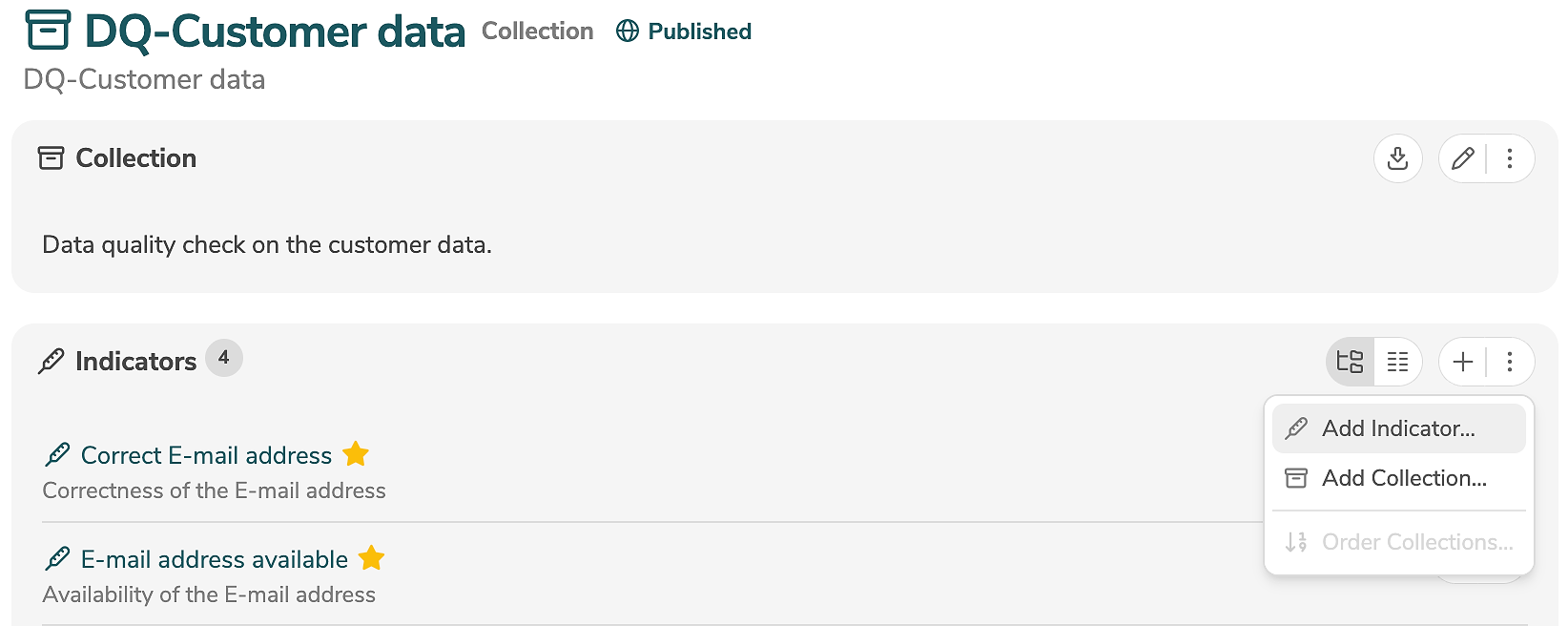
A new indicator is added by clicking the icon "+" (or by selecting "Add Indicator..." in the menu).
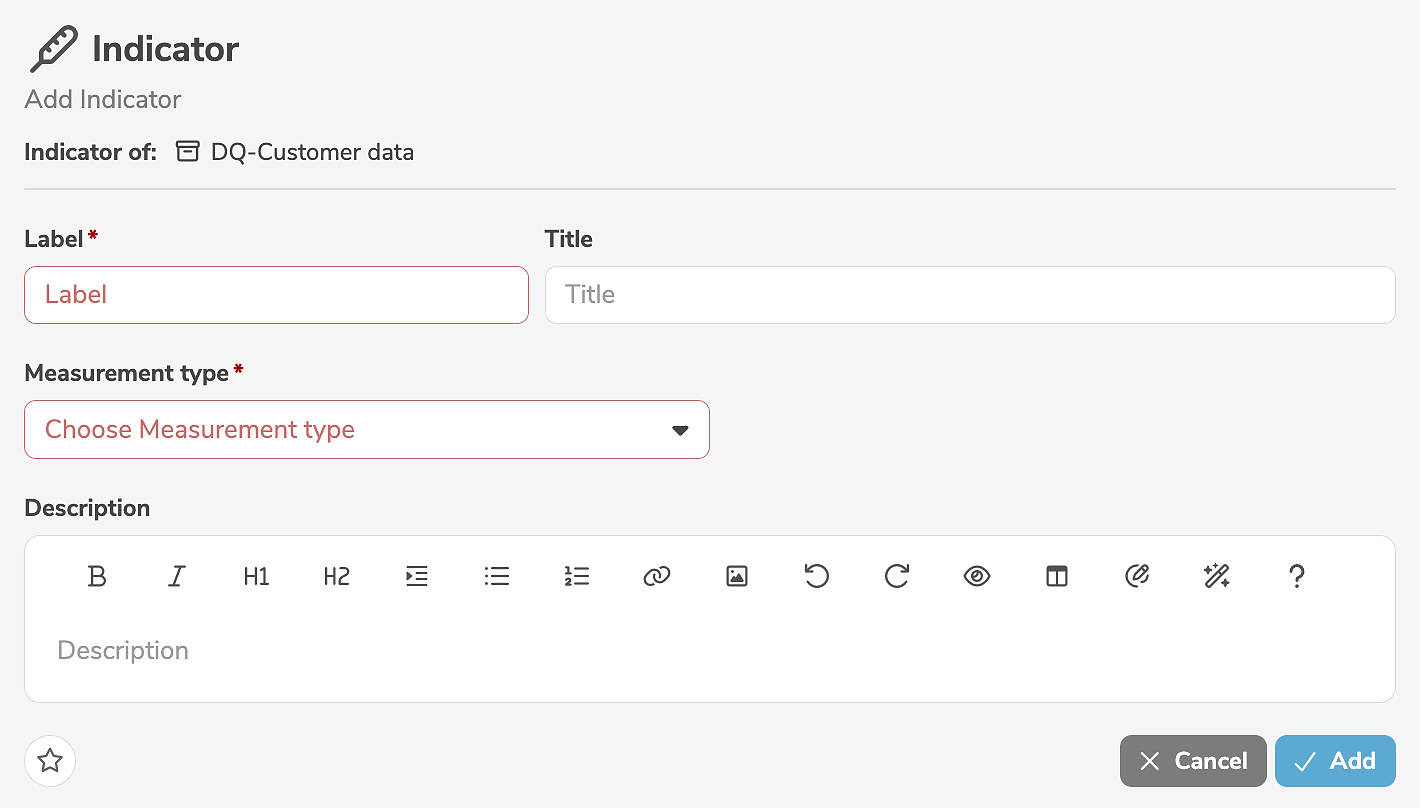
It is mandatory to assign a label and a measurement type to the indicator. In addition, a title and a description can be specified.
Clicking "Add" creates the indicator.
Indicators can also be created by duplicating other indicators.
Edit indicators
An indicator is edited in the main panel of the indicator, by clicking the tab "Indicator" and the edit icon (or by selecting "Edit Indicator" in the menu).
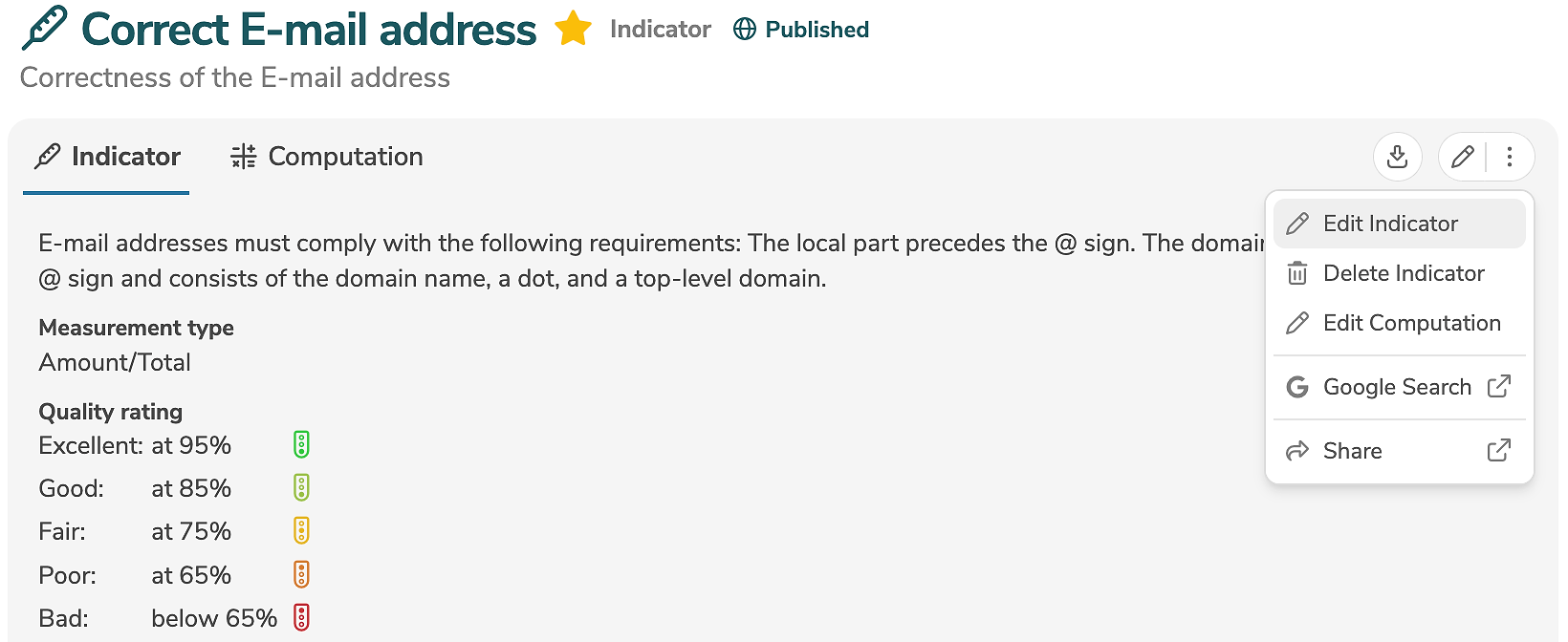
The edit mode allows the modification of all standard input fields. Additional, customer-specific fields can be added using annotations and will then also appear in the edit mode.
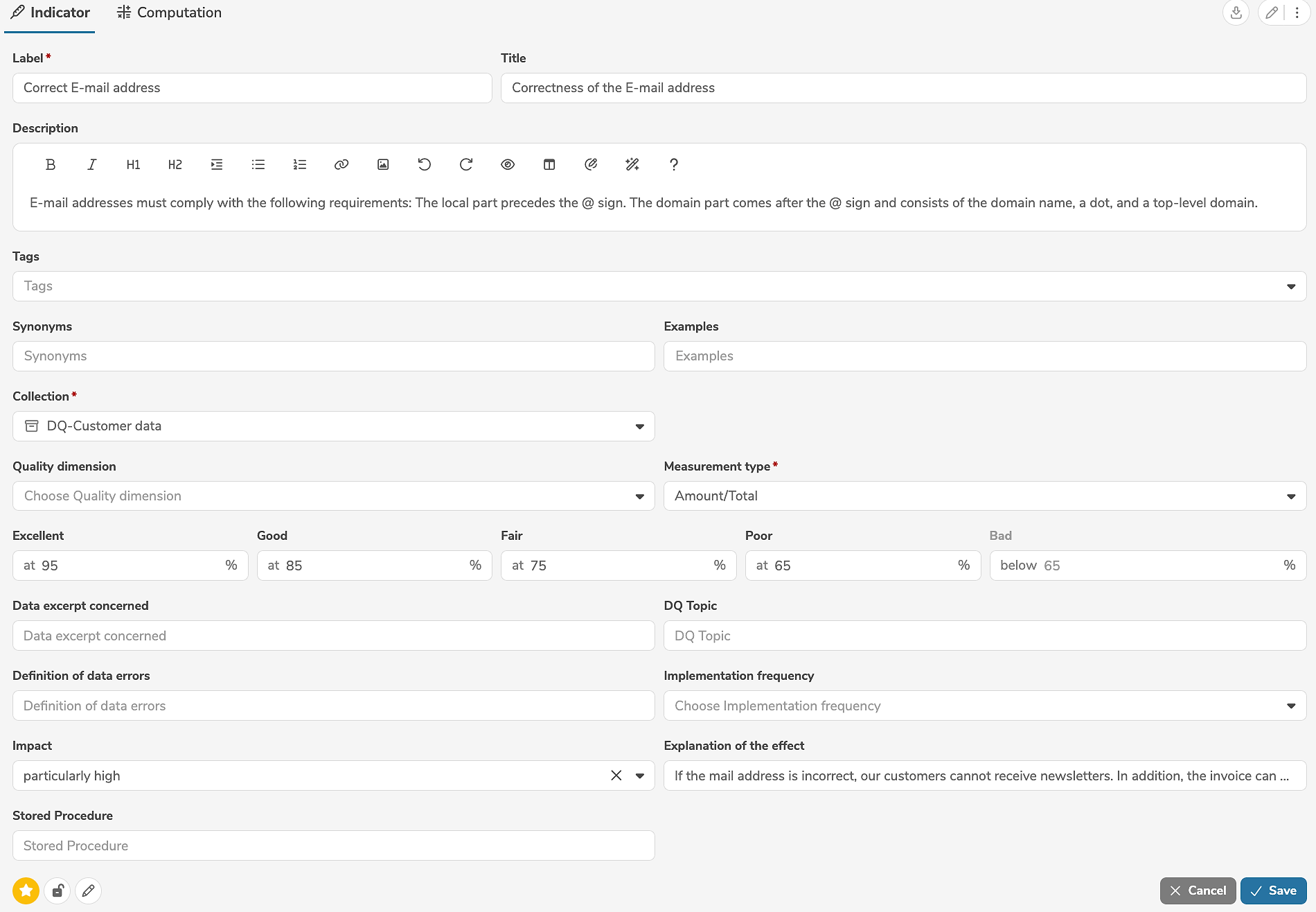
The icons in the lower left corner of the edit view allow further settings to be made:
- Clicking
 marks the element as favorite.
 - Clicking
 marks the element as locked.
 - Clicking
 marks the element as read-only.
Clicking "Save" applies the changes.
An indicator can be deleted in the main panel of the indicator, by selecting "Delete Indicator" in the menu.
Edit computation
The computation can be edited in the main panel of the indicator, by clicking the tab "Computation" and the edit icon (or by selecting "Edit Computation" in the menu).

Clicking "Save" applies the changes.
Add assignments
Assignments to the measured elements are specified in the subpanel of an indicator.
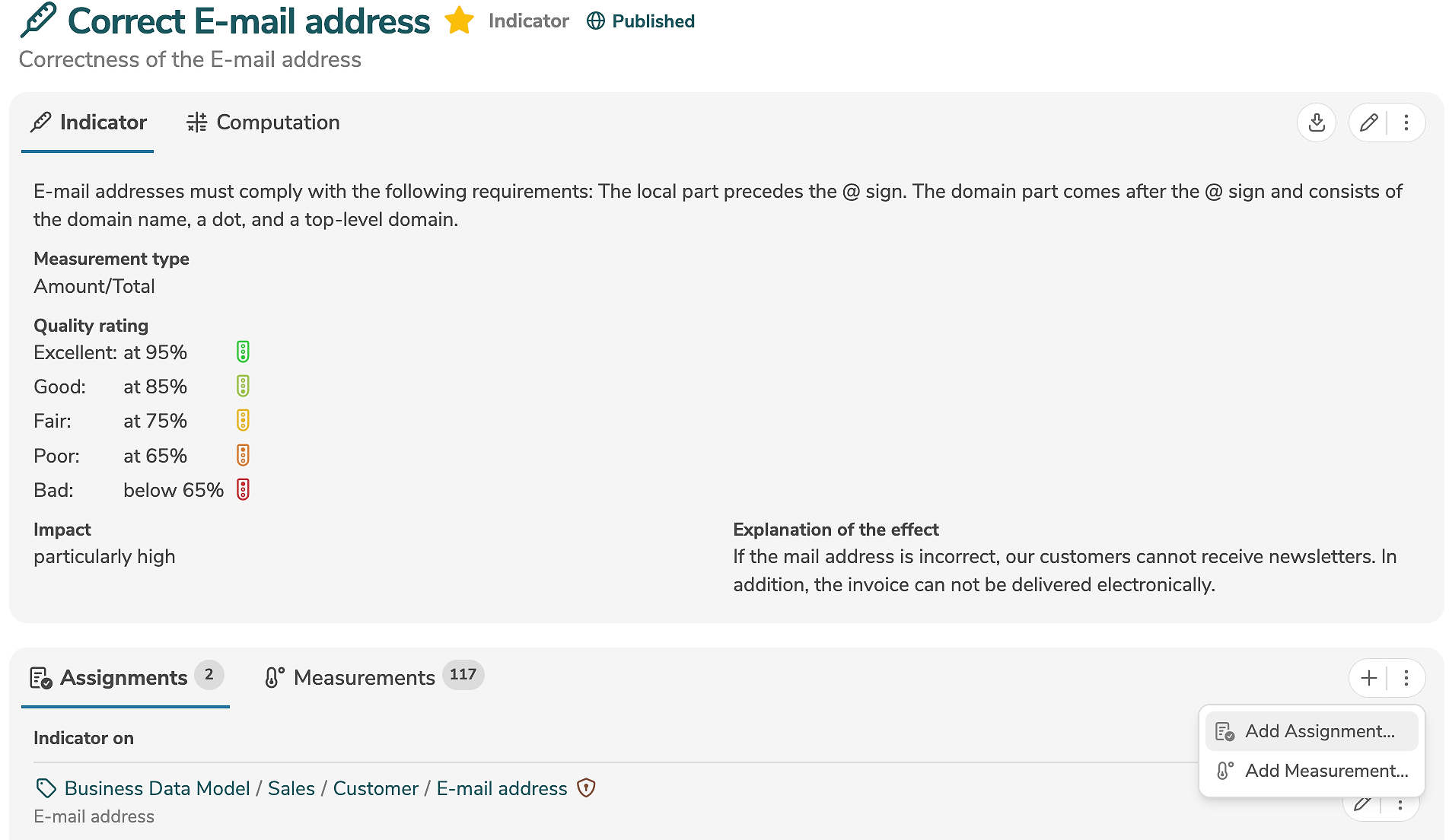
A new assignment is added by clicking the tab "Assignments" and the icon "+" (or by selecting "Add Assignment..." in the menu).
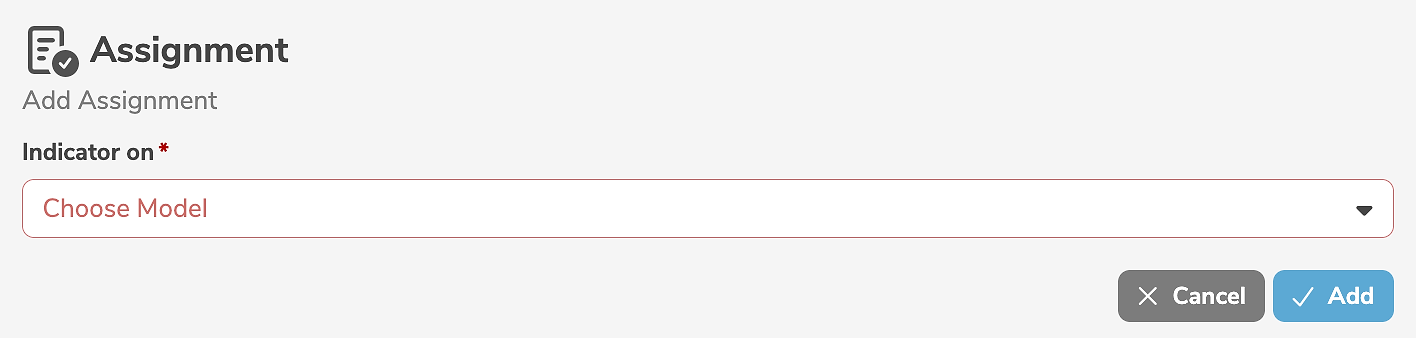
It is mandatory to select an element from a model.
Clicking "Add" creates the assignment.
Assignments can also be created by duplicating other assignments.
Edit assignments
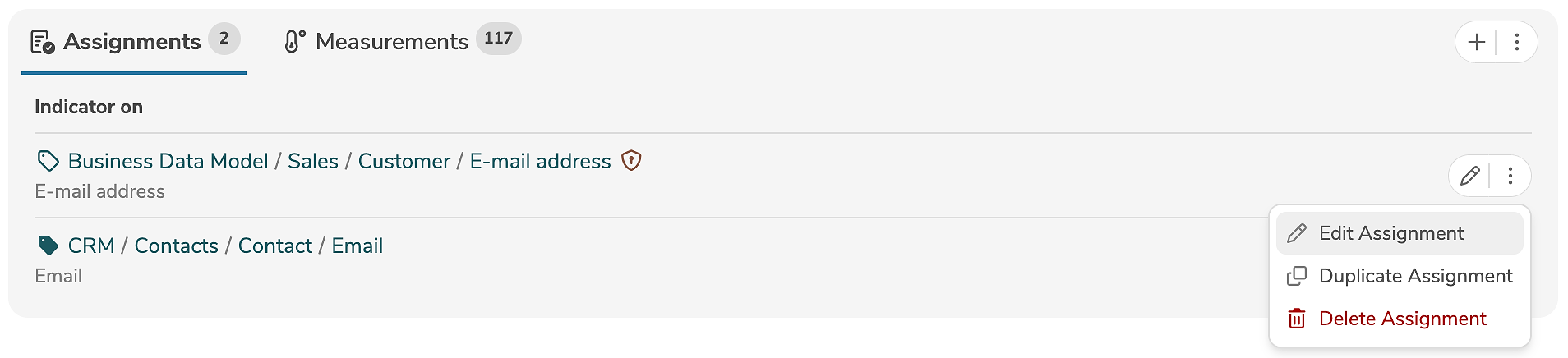
An assignment is edited by clicking the edit icon (or by selecting "Edit Assignment" in the menu) next to the assignment.
The edit mode allows the modification of the input fields.
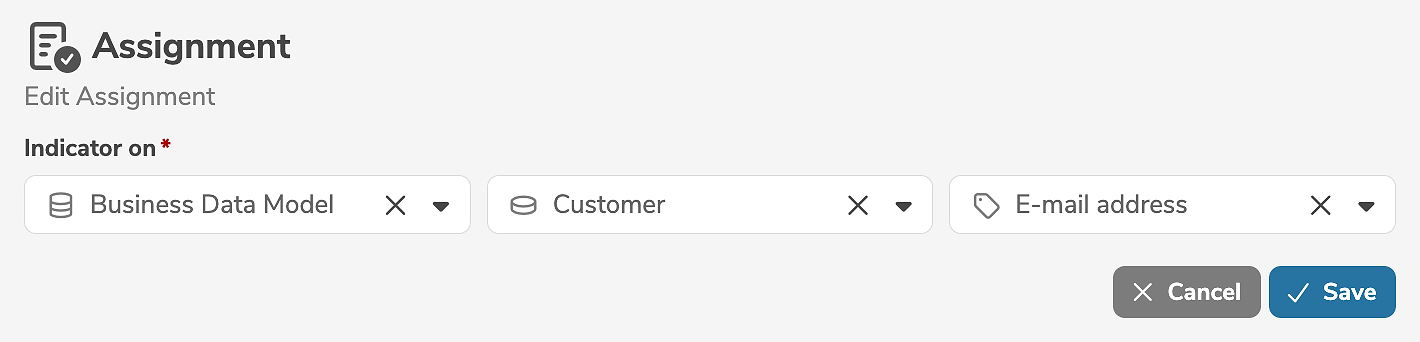
Clicking "Save" applies the changes.
An assignment can be deleted by selecting "Delete Assignment" in the menu next to the assignment.