Users
A user defines the login ID and the password as well as the access level required to sign into the application. Typically, the user is associated with a previously created person.
Each user can be defined in one or in multiple tenants (with different access levels). The login ID of the user exists in different tenants and the user can log in with one of these tenants or select a specific tenant in the user interface.
Only users with the access level Administrator are authorized to create, edit, or delete other users.
Add users
Users are specified in the subpanel of the tenant.
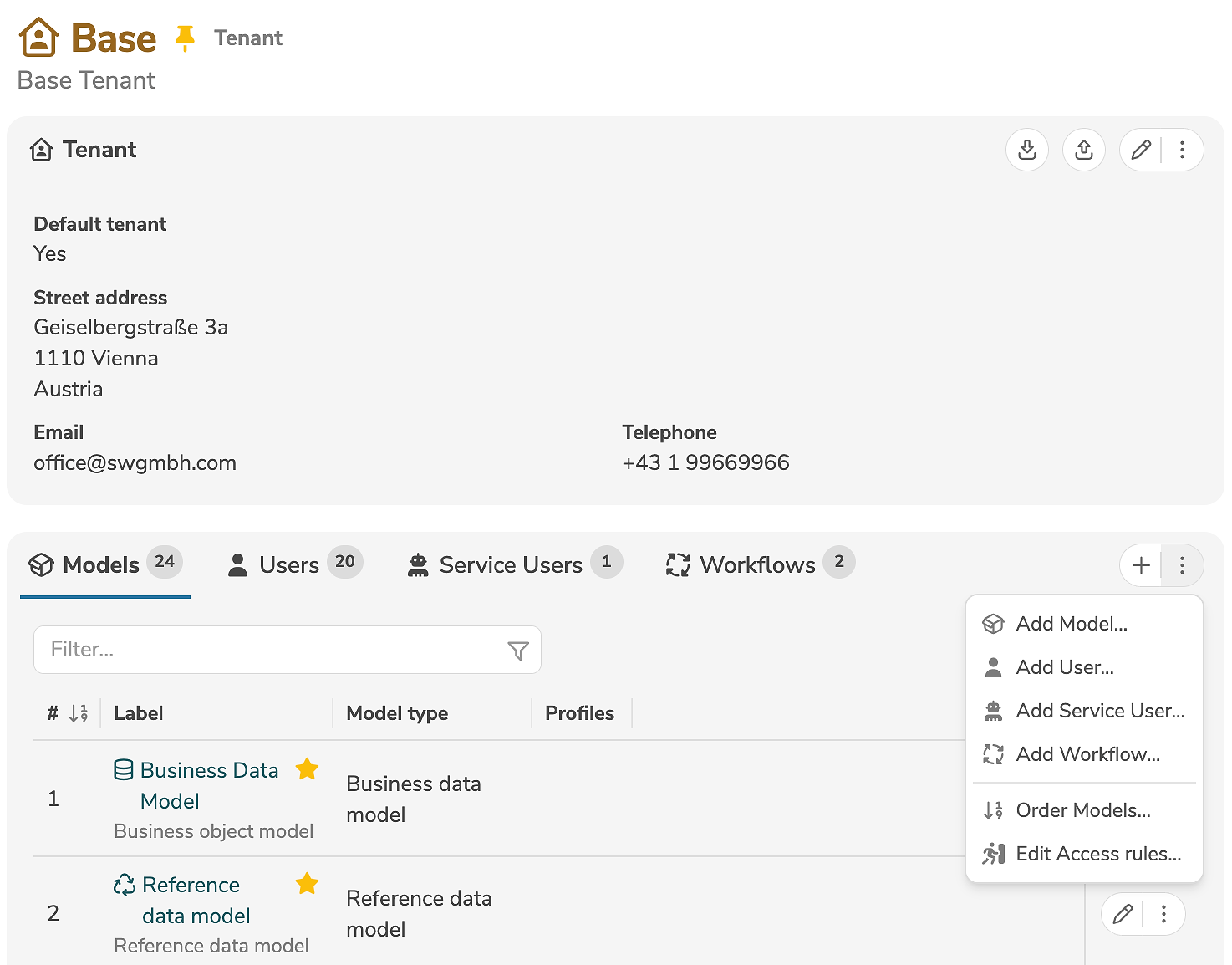
A new user is added by clicking the tab "Users" and the icon "+" (or by selecting "Add User..." in the menu) creates .
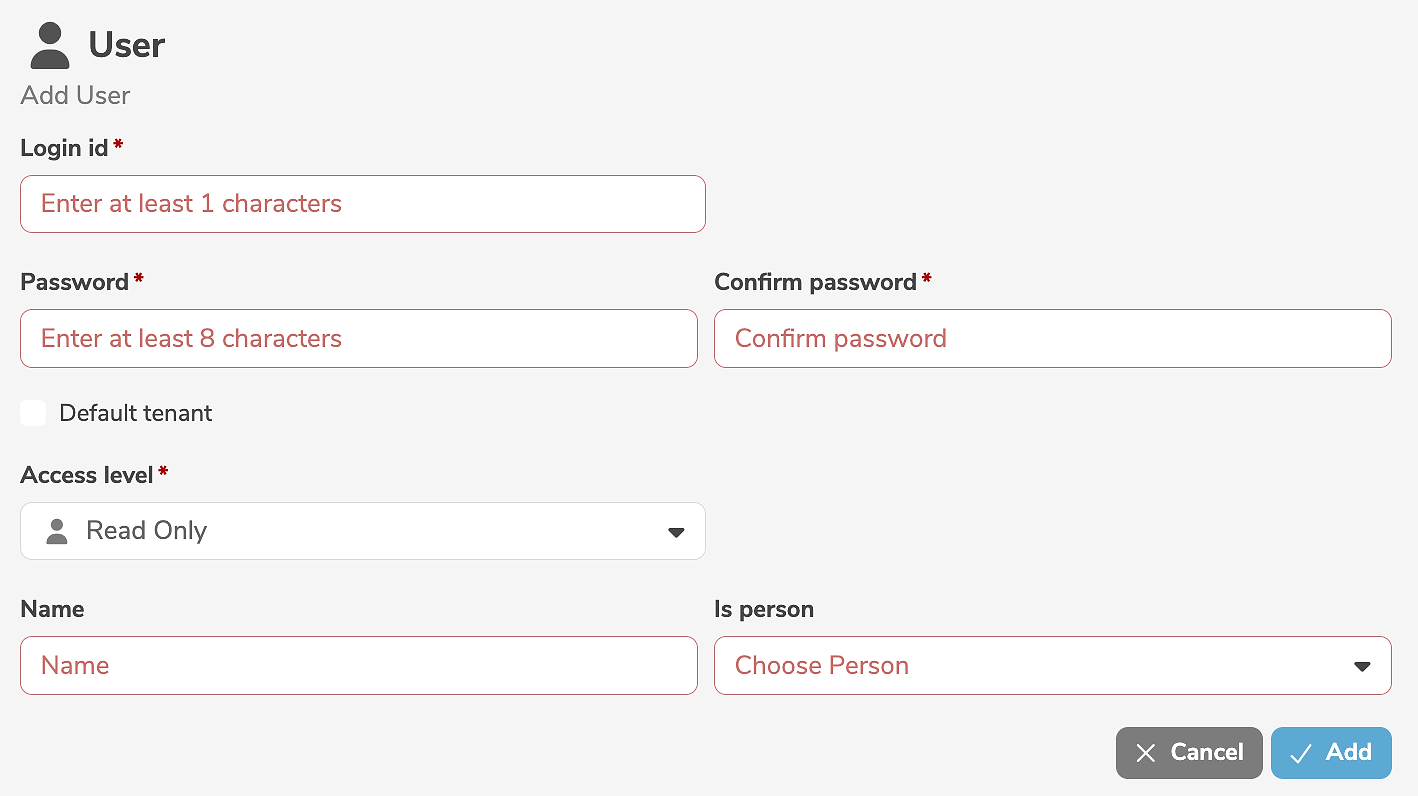
It is mandatory to assign a login ID, a password, and a person (or a name) to the user. In addition, it can be indicated that the user is logged into the current tenant by default, if the login ID exists in multiple tenants. The access level can be changed, if required.
The indicator, that the user is logged into the current tenant by default, can only be set in one single tenant. If the indicator is set, any other indicator of a user with the same login ID, that may exist in another tenant, is automatically removed.
The indicator can also be set in the user's personal settings, allowing each user to individually define their preferred login tenant.
Clicking "Add" creates the user.
If the access level Editor or Administrator is selected, a person must be specified.
In the user interface, the displayed name is automatically determined based on the selected person.
If the access level Read Only is selected, the person can be omitted.
In this case, the name to be displayed in the user interface must be explicitly specified.
The user can later change their password in the personal user menu by clicking in the menu bar on the icon  and on "Change password...".
Edit users
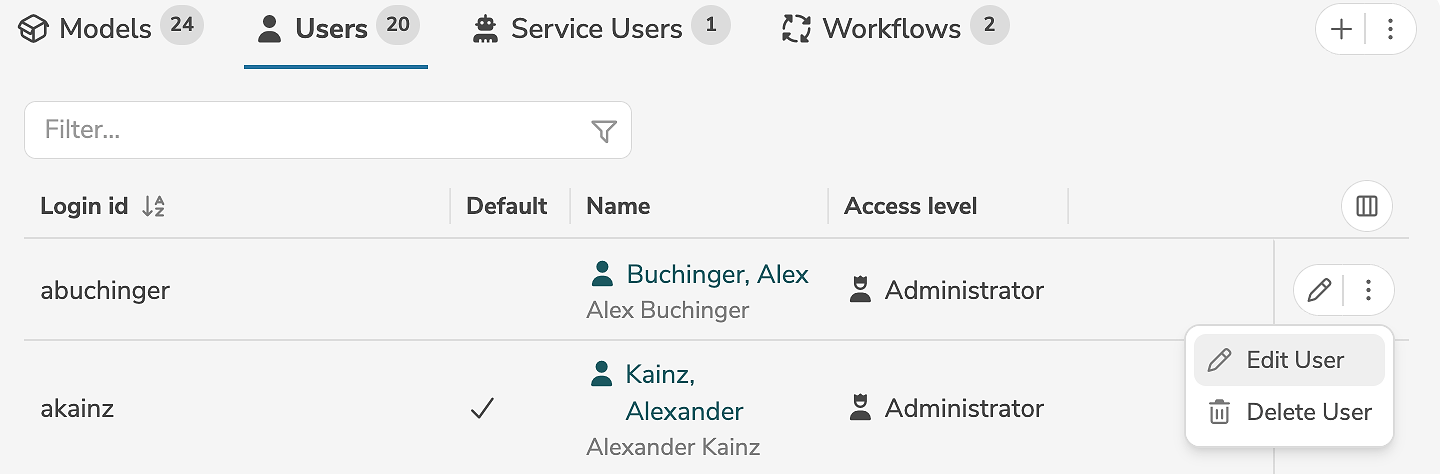
A user is edited in the subpanel of the tenant, by clicking the edit icon (or by selecting "Edit User" in the menu) next to the user.
The edit mode allows the modification of the access level and the person (or name) as well as the indicator, that the user is logged into the current tenant by default. A new password can be assigned, if required.
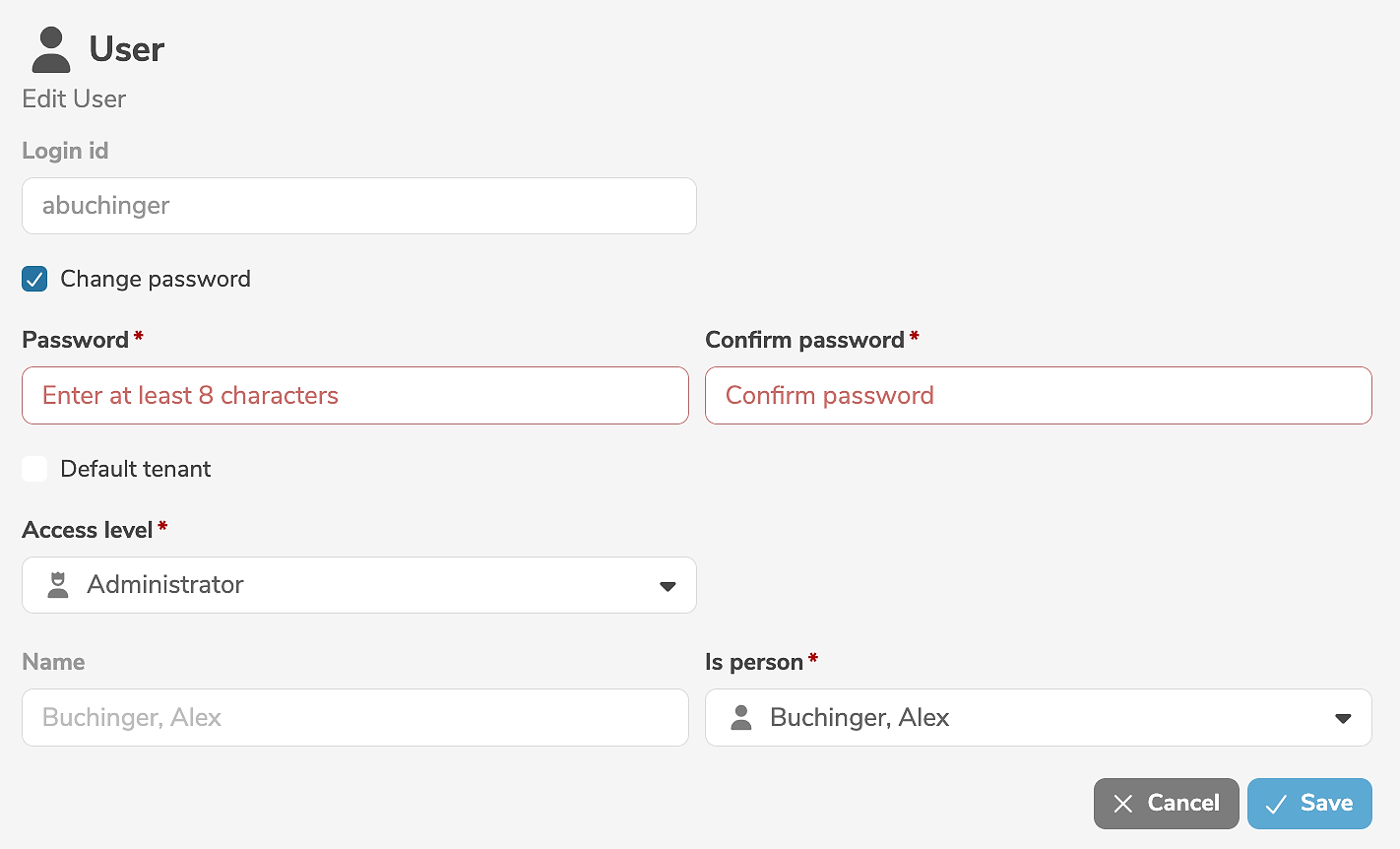
Clicking "Save" applies the changes.
A user can be deleted by selecting "Delete User" in the menu next to the user.
Manage access keys
An access key is a secret character sequence that is assigned to a user. When calling an interface, the access key can be used to identify the user.
A user can still authenticate themselves with the login ID to call an interface. In contrast, service users can only authenticate themselves with an access key.
The access keys of the current user can be managed in the user menu by clicking on "Access Keys...".
In contrast to a service user, whose access keys may only be managed by an administrator, a regular user can manage their own access keys.
The existing access keys are displayed in the dialog.
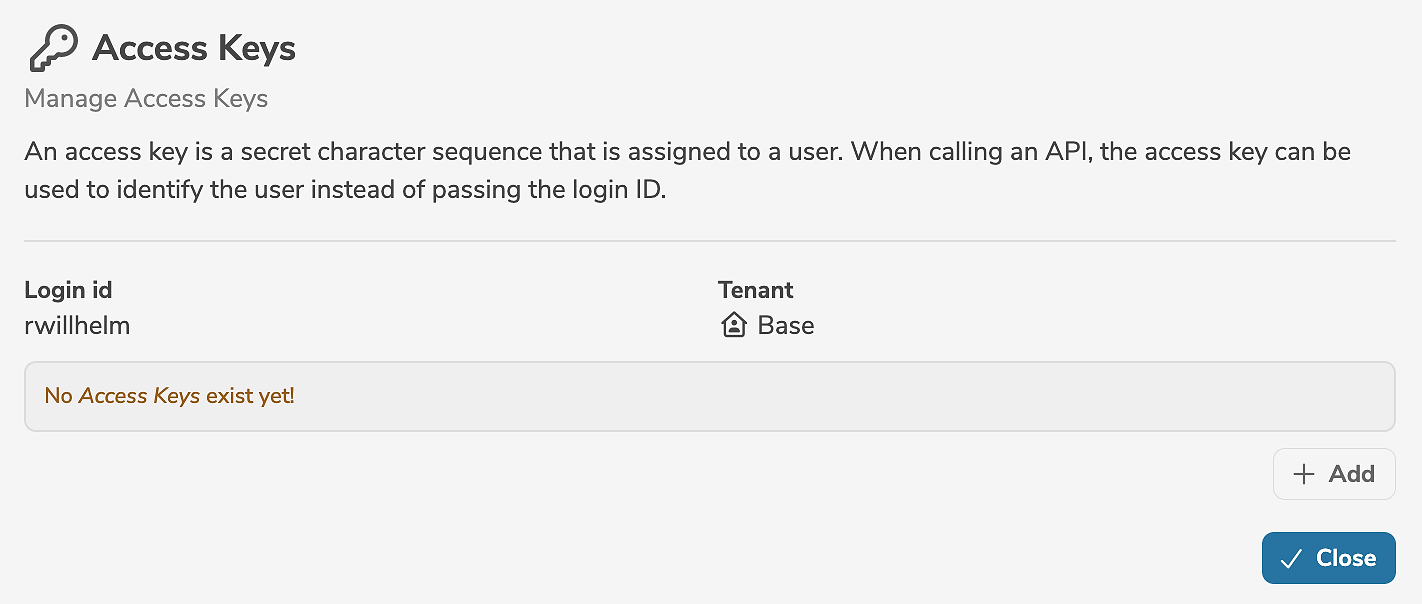
For security reasons, the values of the existing access keys are not displayed in full.
A new access key is added by clicking "Add".
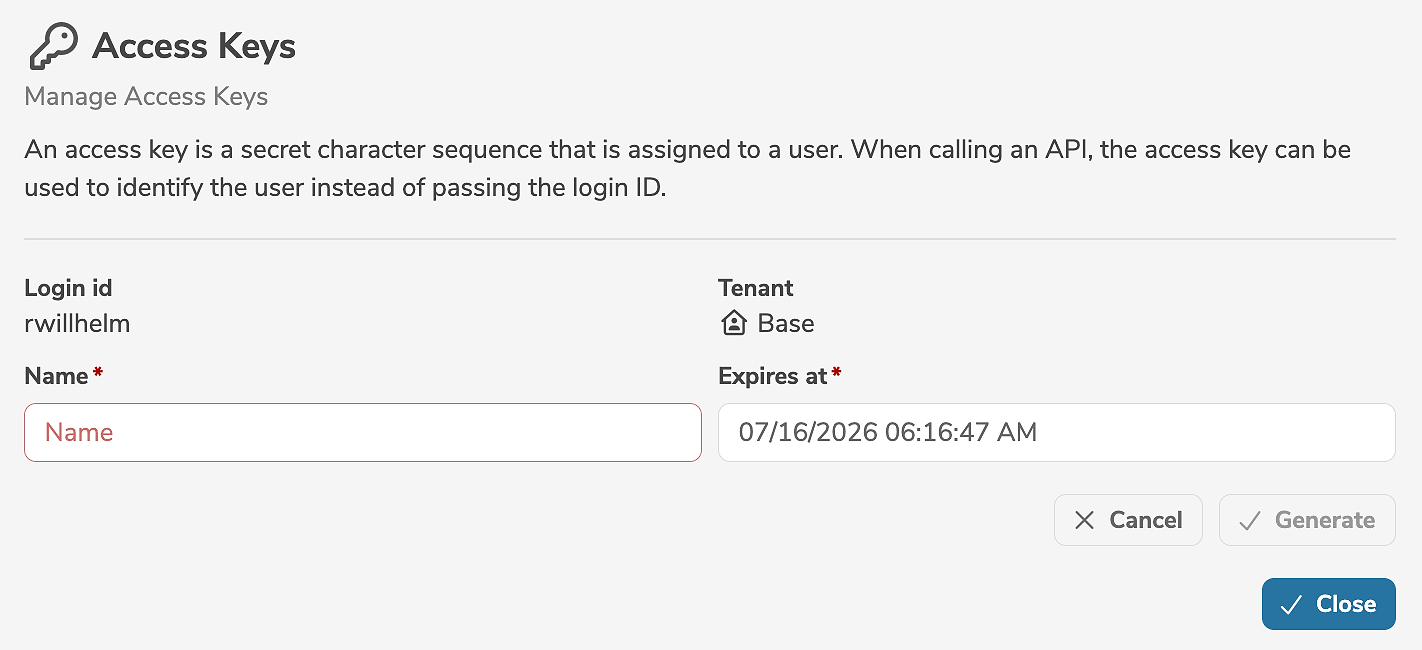
It is mandatory to specify the unique name and the expiry date.
A new access key can be used immediately for interface calls. A new access key is typically generated before an existing access key expires. Interface calls can be gradually migrated to the new access key without disrupting ongoing operation.
Clicking "Generate" generates a new acccess key and assigns it to the user.
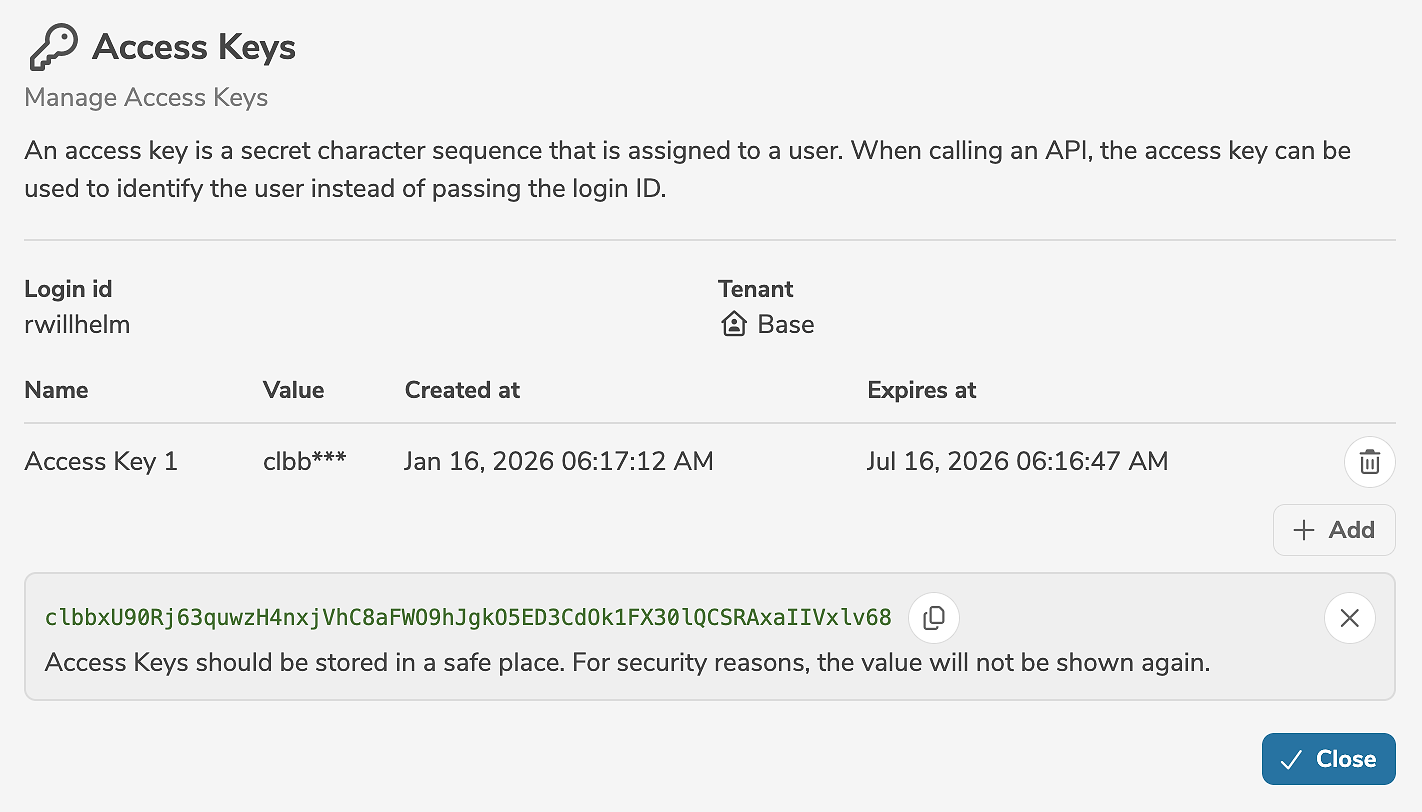
For security reasons, the access key is only displayed once immediately after it has been generated. The access key must be copied and stored in a safe place. If the access key is lost, it must be deleted and a new access key must be generated.
Clicking  deletes the access key.
An access key is only valid in a single tenant. If the user exists in multiple tenants, different access keys must be created for each tenant.