Upload
The user interface supports importing models (including any contained elements) from different formats.
Users with the access level Administrator are always authorized to import models.
In addition, specific roles that are allowed to import models can be defined in the workflow.
Users with the access level Editor are authorized to import models, if they are responsible for the model in one of these roles.
In contrast, any user is allowed to export metadata and generate reports.
Functionality
Uploading in the user interface has the same functionality and semantics as the upload API. All options can be configured in the upload dialog.
Formats
When importing models, the following formats are supported:
| Format | File extension | Description |
|---|---|---|
Microsoft Excel | .xlsx | XLSX (Excel Spreadsheet) |
CSV (Zipped) | .zip | CSV (Comma-separated values) in ZIP file |
XML | .xml | XML (Extensible Markup Language) |
JSON | .json | JSON (JavaScript Object Notation) |
SQL | .ddl, .sql | DDL/SQL (Data Definition Language), for data models only |
XSD (Zipped) | .zip | XSD (XML Schema Definition) in ZIP file, for data models only |
JSON Schema (Zipped) | .zip | JSON Schema in ZIP file, for data models only |
The properties are based on the imported model and consist of all default properties defined in the metamodel, supplemented by all custom properties configured in the respective database.
Usage
The upload dialog can be opened in the main panel of the model, by clicking the upload icon.

A file can be dragged into the upload dialog using "drag and drop". Alternatively, a file selection dialog can be opened to select a file from the file system.
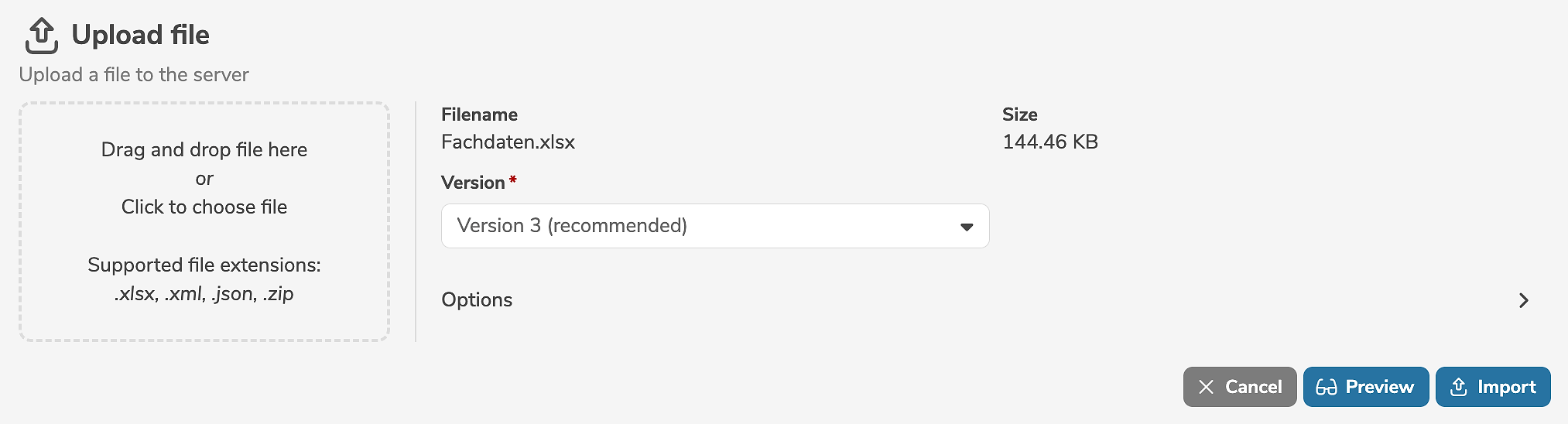
If a file with the extension .zip is opened, the exact format (CSV, XSD, or JSON Schema) must be selected (see option format).
By default, CSV (Zipped) is selected.
The version (see option v) has an impact on the reconciliation of the imported elements and can be changed.
By default, version 3 (recommended) is selected.
The mode (see option operation) defines whether existing elements, that have not been imported in the model, are considered obsolete.
- Added elements can be set to a specified status (see option
onInsert). - Updated elements can be set to a specified status (see option
onUpdate). - Obsolete, omitted elements can be deleted or set to a specified status (see option
onDelete).
The upload can be performed as a test run or actually change data:
- Clicking "Preview" starts a job that performs a test run of the upload (see option
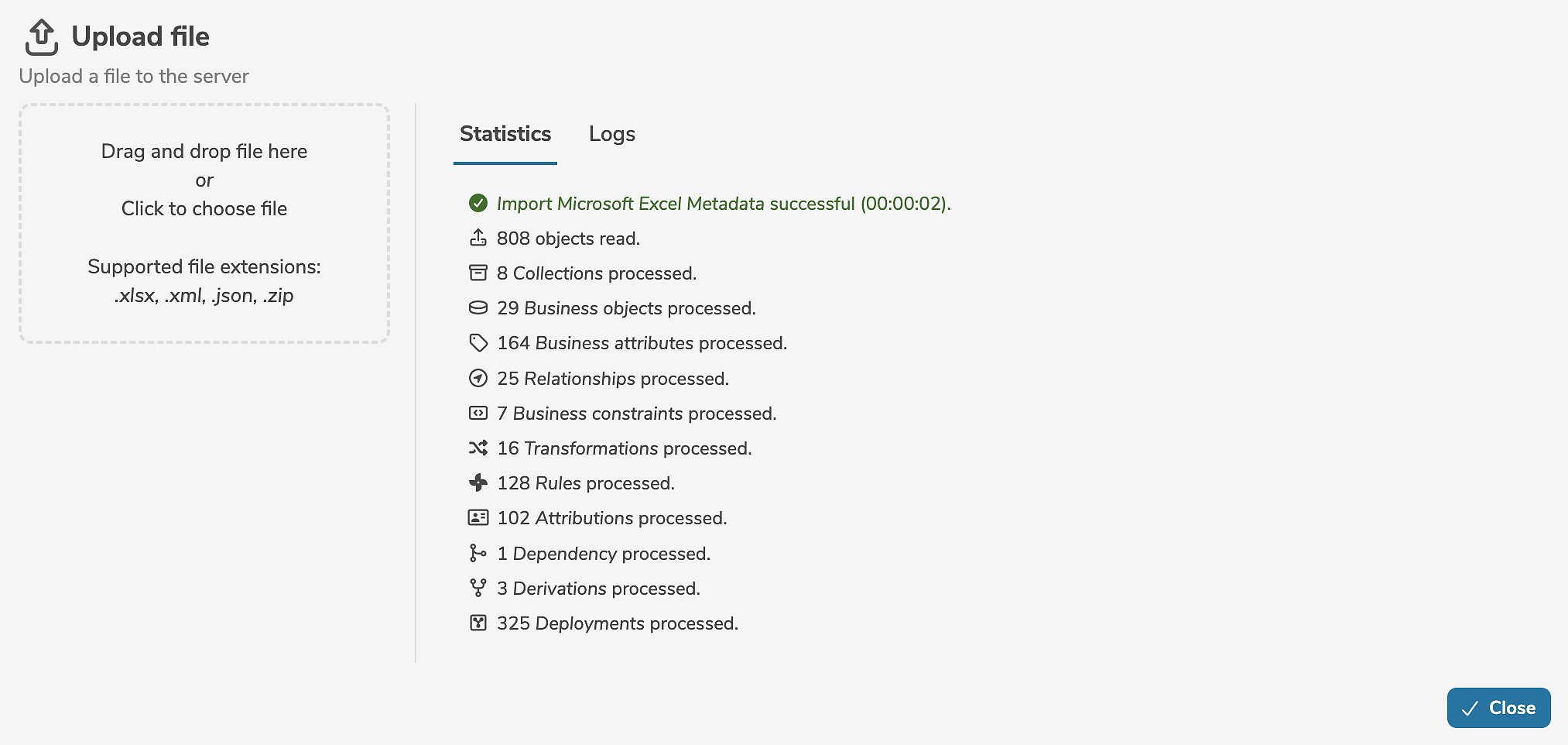
dryRun), but without actually changing data. Thereafter, the statistics and logs are output. - Clicking "Upload" starts a job that actually performs the upload. Thereafter, the statistics and logs are output.
- Clicking "Stop" will stop the running upload.
By clicking "Close" the dialog can be closed without stopping the running upload. The user can continue to use the application while the upload is running in the background. If necessary, the upload can later be stopped or restarted in the dashboard.
Error handling
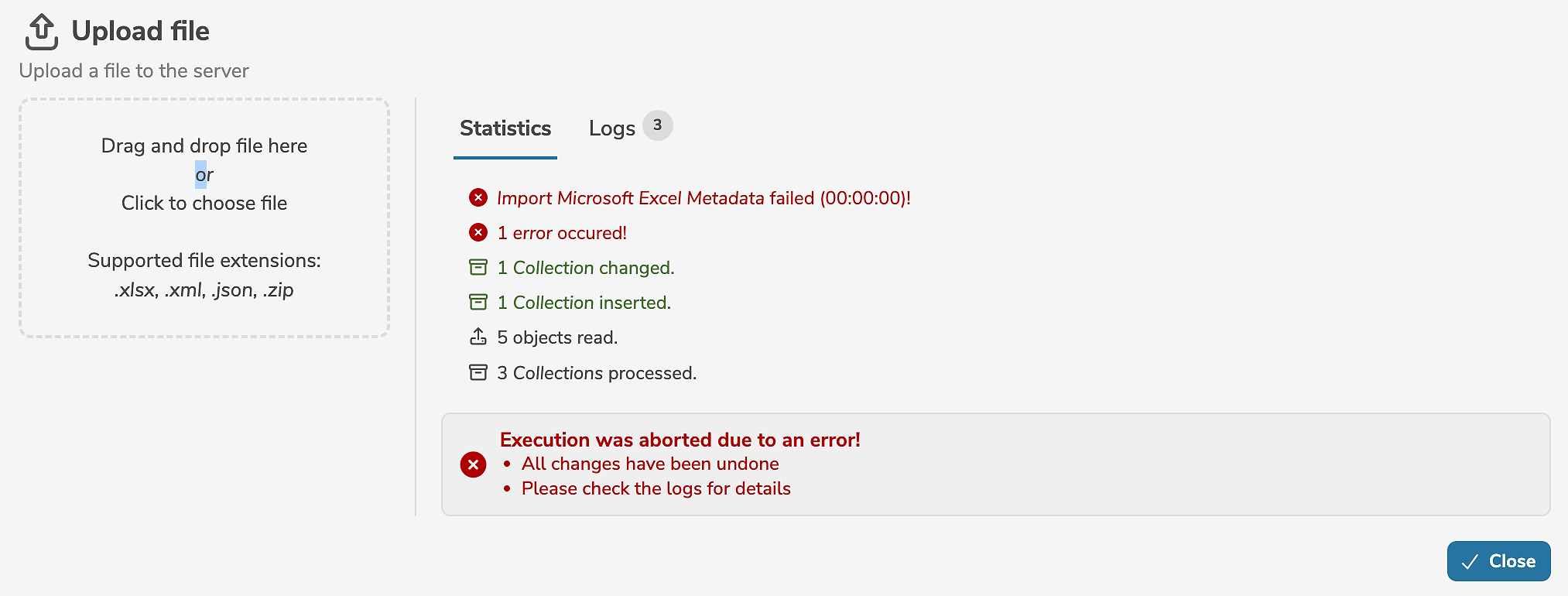
If any severe errors occur while uploading, a corresponding error message is output. In this case, the entire upload is aborted and no data is modified. The exact cause of the errors can be found in the logs.
Troubleshooting
When uploading, the specifics of the respective formats must be taken into account. Many errors and problems can be avoided by following a few tips.
| Issue | Impact | Solution |
|---|---|---|
| Duplicate elements | Importing elements with identical business keys may cause errors. In any case, with each occurrence the previous element is overwritten. | After copying content from different sources, check if there are duplicates and correct or remove them, if necessary, before importing. |
| Columns in Excel or CSV that do not correspond to a valid property | Invalid columns abort the import. | There may only be columns that correspond to the default properties defined in the dataspot metamodel or to custom properties configured in the respective database. Other columns (e.g comments) must be removed before importing. |
| Missing collection reference | Missing references abort the import. | For all elements that are within collections, a reference to a collection must be specified. |
| Invalid values in properties with value lists | Invalid values that do not match the value list abort the import. | When exporting to Excel, the possible values for properties with value lists are stored as a dropdown list in the field. When importing, only these values should be selected. |
| Missing status | Missing status aborts the import. | A status must be specified for all elements. After exporting to Excel, the status can be selected from a dropdown list. The field "Status" must be populated with a valid value from the dropdown list. |
| Invalid references to other elements | A reference to a non-existent element or an invalid business key abort the import. | Each reference must be a valid business key to an existing element. |
| Blank lines | Blank lines may lead to the incorrect processing of the subsequent elements. | Blank lines within fields must be removed. |
Depending on the format, the names of the properties correspond to the labels displayed in the user interface or to the (internal english) attribute names (according to the metamodel). For properties, whose values come from value lists, the label of the code (as shown in the user interface) or the respective code (according to the metamodel) is expected.