Download
The user interface supports exporting models and metadata as well as generating reports in different formats.
Any user is authorized to export metadata and generate reports.
In contrast, only users with the access level Administrator or the access level Editor are allowed to import models.
Functionality
Downloading in the user interface has the same functionality and semantics as the download API. All options can be configured in the download dialog.
The following built-in reports (see option xsl) can be generated:
| Name | Format | Description |
|---|---|---|
| UML Export | XMI | Exports the metadata as a UML model. |
| Data Quality Report | PDF | Provides a summary of the indicators and their measurements. |
| Impact Report | PDF | Details the impact considering any usages in projects and processings. |
| Lineage Report | PDF | Details the lineage considering any derivations and transformations. |
| Mapping Report | CSV, PDF | Lists the transformations of each element. Represents which elements are currently not provided with a transformation. |
| Metadata Report | PDF | Provides a detailed overview of all contained metadata. |
| Organization Report | PDF | Describes the DX organization with all persons, groups, posts, roles and tasks. |
| GDPR Processing Records | PDF | Shows the processing activities in compliance with Art. 30 GDPR and lists all documented processings and the data used therein. |
| Project Report | PDF | Gives an overview of a project including all documented information and links. |
| Reference values Export | CSV | Exports the selected reference values. |
| Collection Statistics | CSV, PDF | Provides a quantitative overview of all contained metadata. |
Additional, customer-specific reports can be implemented in XSLT and be uploaded and edited on the tenant page.
Formats
When exporting metadata, the following formats are supported:
| Format | File extension | Description |
|---|---|---|
Microsoft Excel | .xlsx | XLSX (Excel Spreadsheet) |
CSV (Zipped) | .zip | CSV (Comma-separated values) in ZIP file |
XML | .xml | XML (Extensible Markup Language) |
JSON | .json | JSON (JavaScript Object Notation) |
SQL | .sql | DDL/SQL (Data Definition Language) |
The properties are based on the exported model and consist of all default properties defined in the metamodel, supplemented by all custom properties configured in the respective database.
The exported metadata can be modified, if necessary, and imported.
The results of the search and issue search can also be exported. The exported issues from the issue search can be modified, if necessary, and imported. The exported assets from the search cannot be imported in this format.
The built-in reports support the following formats:
| Format | File extension | Description |
|---|---|---|
PDF | .pdf | PDF (Portable Document Format) |
CSV | .csv | CSV (Comma-separated values) |
XML | .xmi | XMI (XML Metadata Interchange) |
Customer-specific reports may support other additional formats.
Usage
The download can be opened in the main panel of the element, by clicking the download icon.
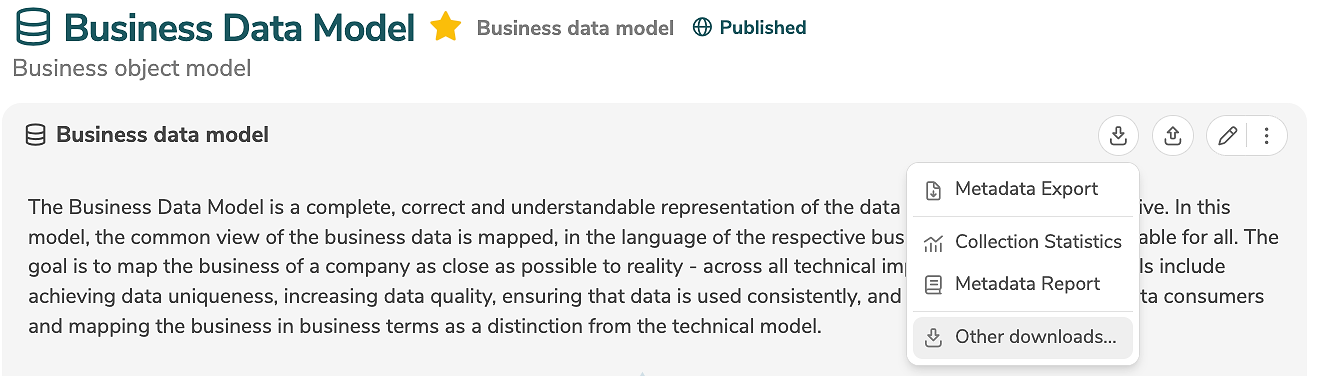
Common downloads can be selected directly in the menu.
The available downloads depend on the currently opened model or element.
Clicking on "Other downloads..." opens the download dialog.
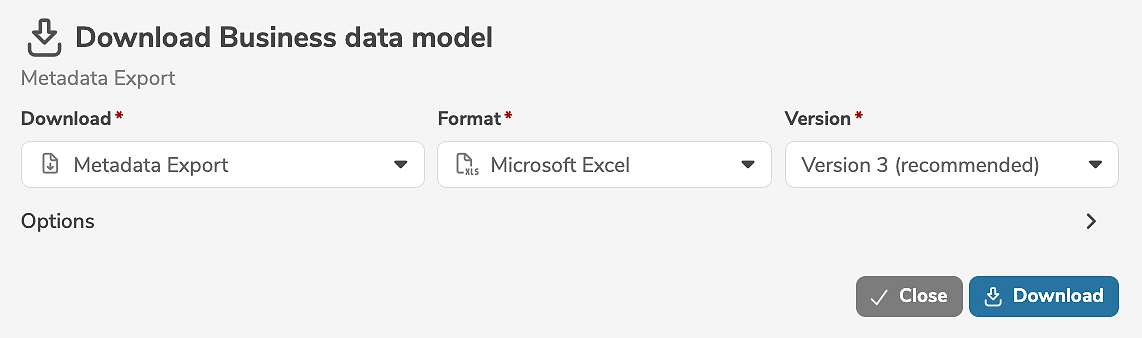
Depending on the download, various filters (collection, status, etc.) can be specified or further settings are available:
- For the export
Metadata Export, the version (see optionv) can be changed. By default, version 3 (recommended) is selected. - For the export
DDL Export, a target database (see optiontargetDatabase) must be selected. - For the report
GDPR Processing Records, a specification (internalorexternal) must be selected.
It is mandatory to select the download and the format.
- Clicking "Download" starts a job that performs the download. While the download is running, the progress is displayed.
- Clicking "Stop" will stop the running download.
By clicking "Close" the dialog can be closed without stopping the running download. The user can continue to use the application while the download is running in the background. If necessary, the provided result can later be retrieved in the dashboard, where the download can also be stopped or restarted.
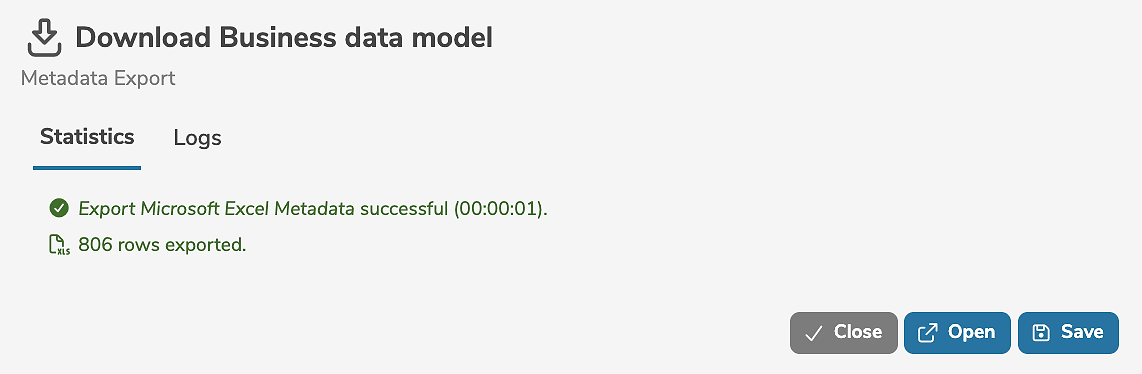
When the download has completed, the statistics and logs are displayed.
- By clicking "Open" the download is opened and displayed.
- By clicking "Save" the download can be saved as a file.