Transformations
Transformations represent the connections and the exact correlations of the data both within the models and across models. They define the so-called lineage and subsequently determine the impact of the data.
Add transformations
Transformations of the selected element are specified in the additional tab "Transforms from".

A transformation has a direction, from a source element to a target element, and can only be added at the target element.
A new transformation of the selected element is added by clicking the icon "+" (or by selecting "Add Transformation..." in the menu).
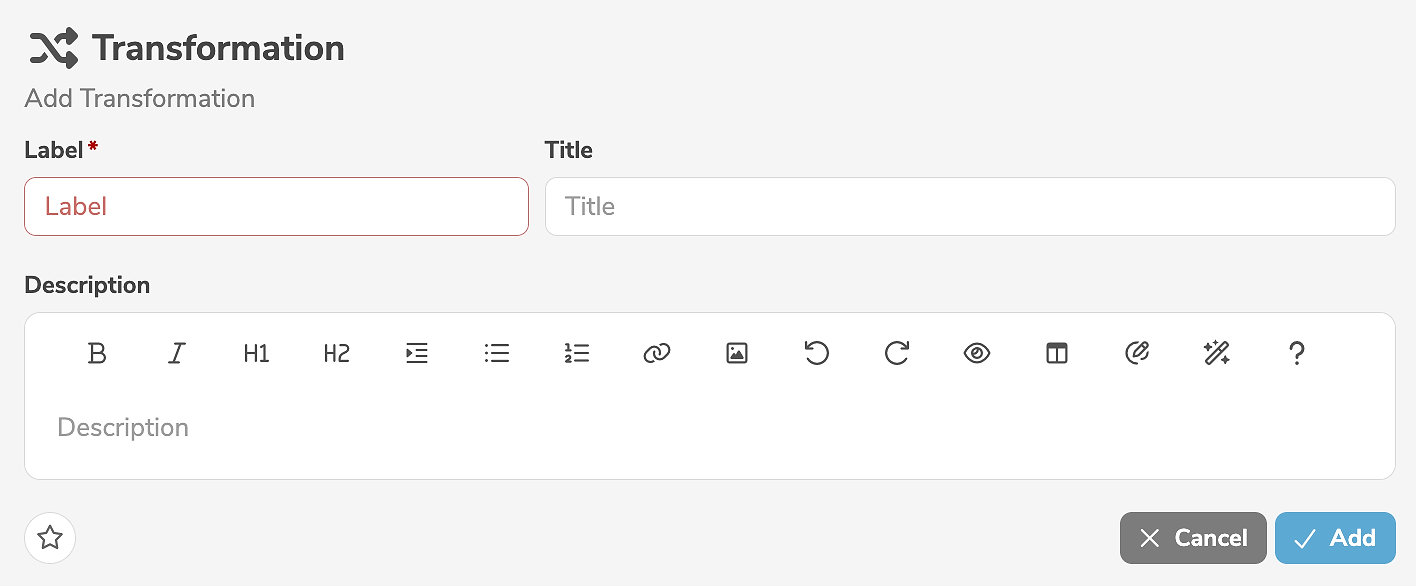
It is mandatory to assign a label to the transformation. In addition, a title and a description can be specified.
Clicking "Add" creates the transformation.
Edit transformations
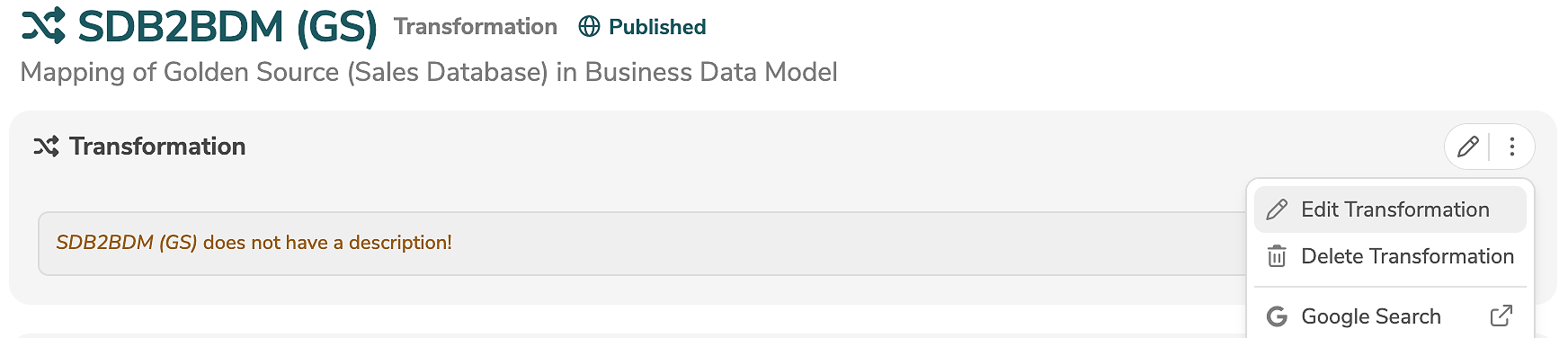
A transformation is edited in the main panel of the transformation, by clicking the edit icon (or by selecting "Edit Transformation" in the menu).
The edit mode allows the modification of all standard input fields. Additional, customer-specific fields can be added using annotations and will then also appear in the edit mode.
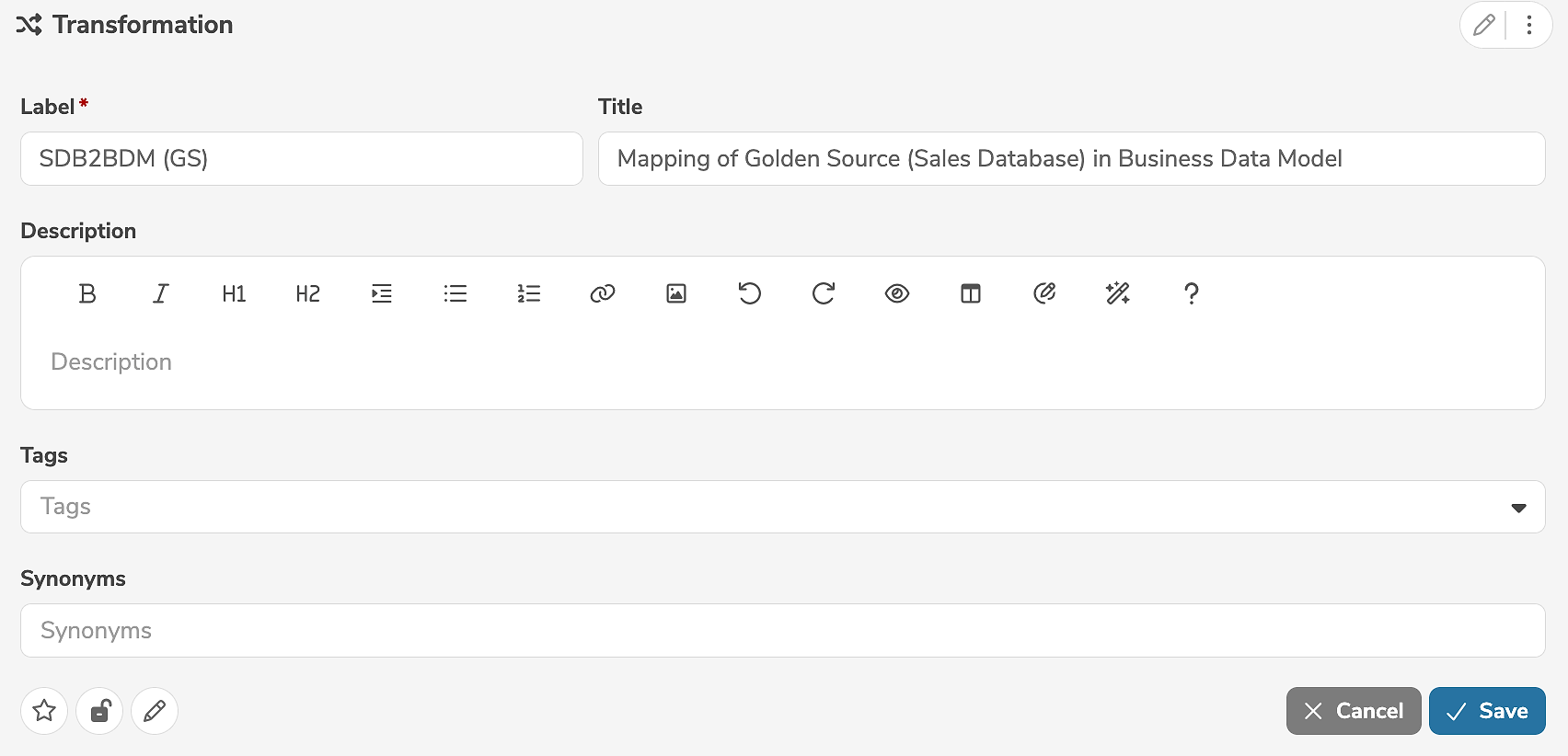
The icons in the lower left corner of the edit view allow further settings to be made:
- Clicking
 marks the element as favorite.
 - Clicking
 marks the element as locked.
 - Clicking
 marks the element as read-only.
Clicking "Save" applies the changes.
A transformation can be deleted in the main panel of the transformation, by selecting "Delete Transformation" in the menu.