Dashboard
The dashboard is the personal overview page for all employees in the DX organization.
Assets
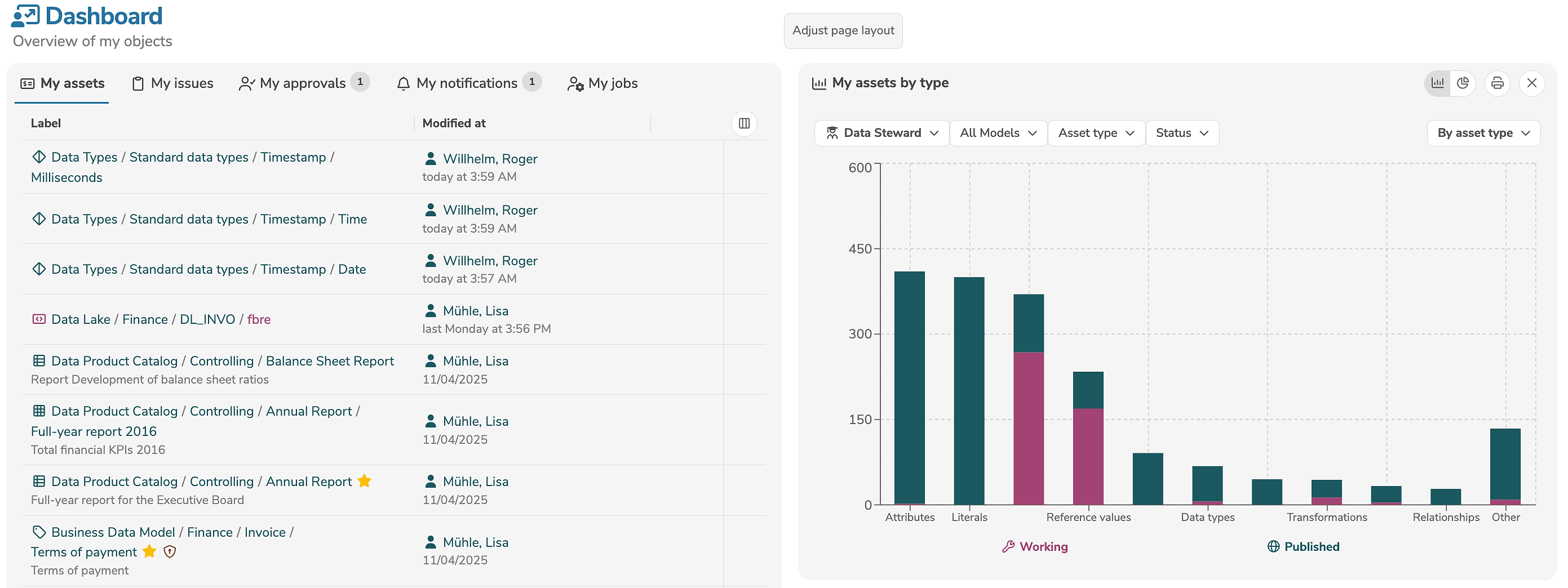
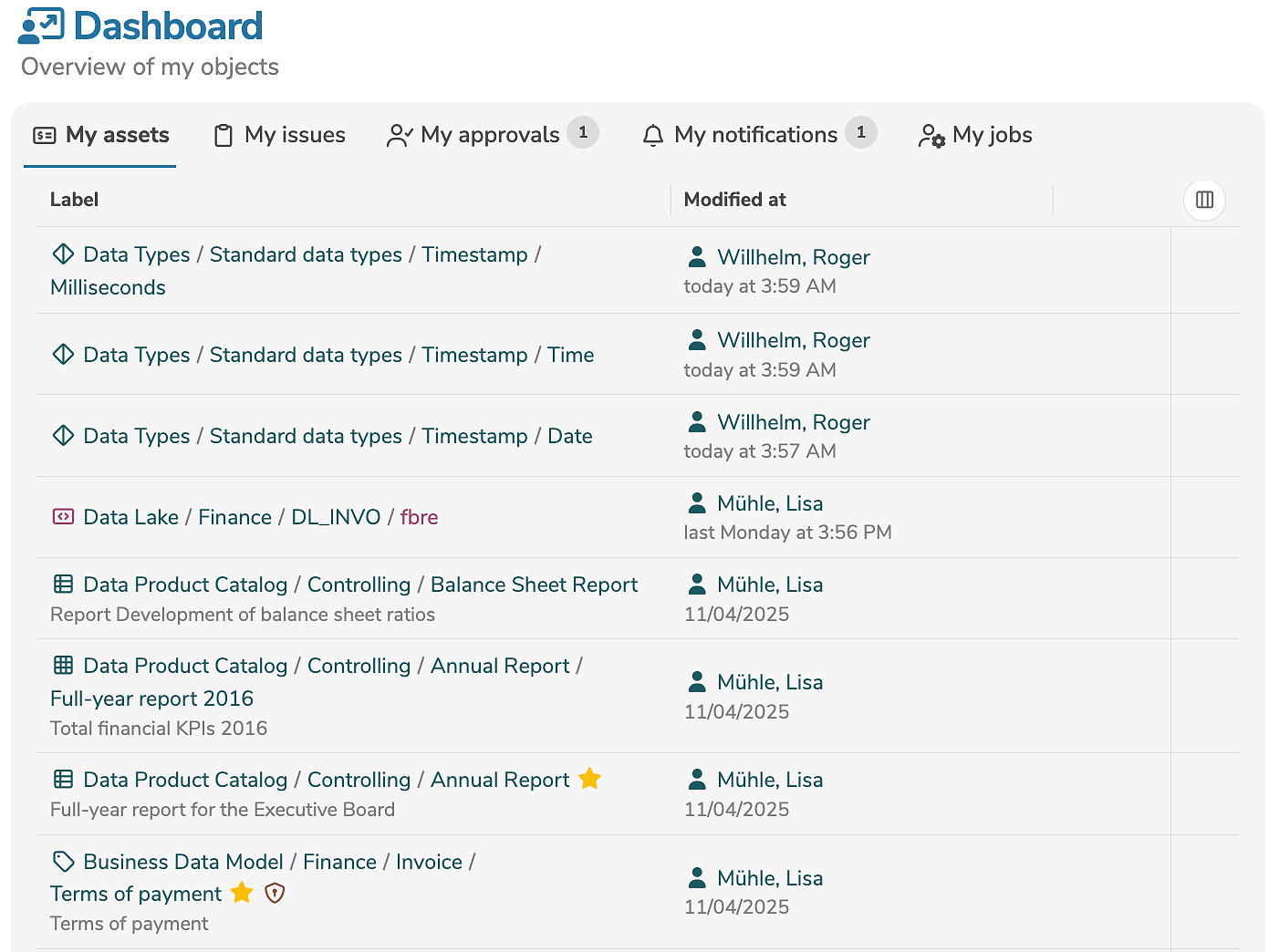
The tab "Assets" displays all changes to assets that are in the user's responsibility. The assets are sorted by date of modification. Additionally, the person who made the change is displayed.
Issues
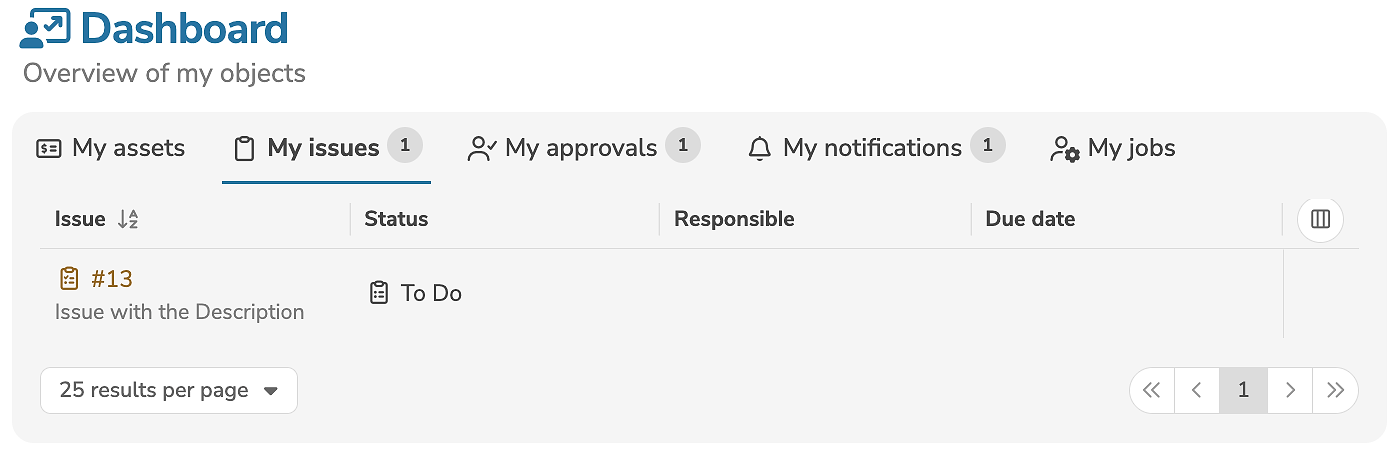
The tab "Issues" displays all open issues that are in the user's responsibility. This displays issues created by the user as well as issues where the user is listed as a participant. The list presents an overview of the user's open activities.
Approvals
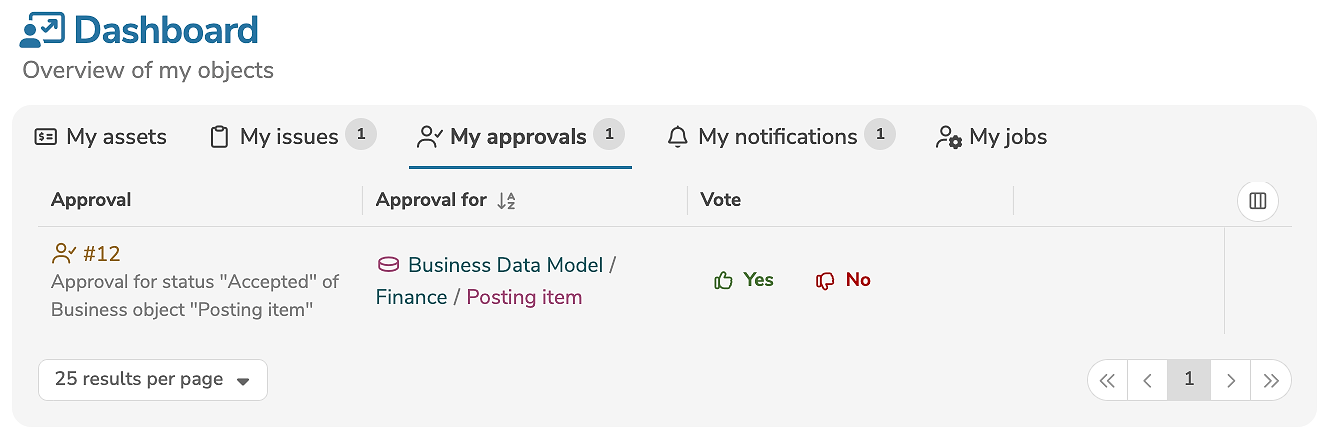
The tab "Approvals" displays all pending approvals in which the user can vote.
The user can directly place a vote by clicking on the icon  or
or  .
.
Notifications
The tab "Notifications" displays all notifications of the user. The notifications are influenced by the settings in the workflow, the assigned responsibilities and the notification settings of the user.
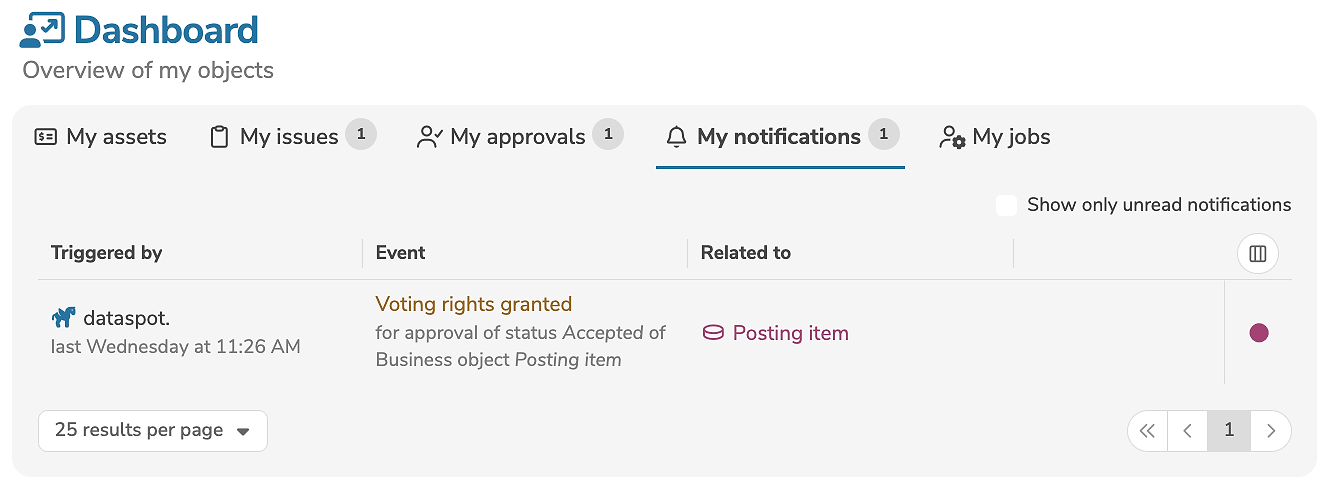
Notifications can be filtered to show only unread notifications.
Jobs
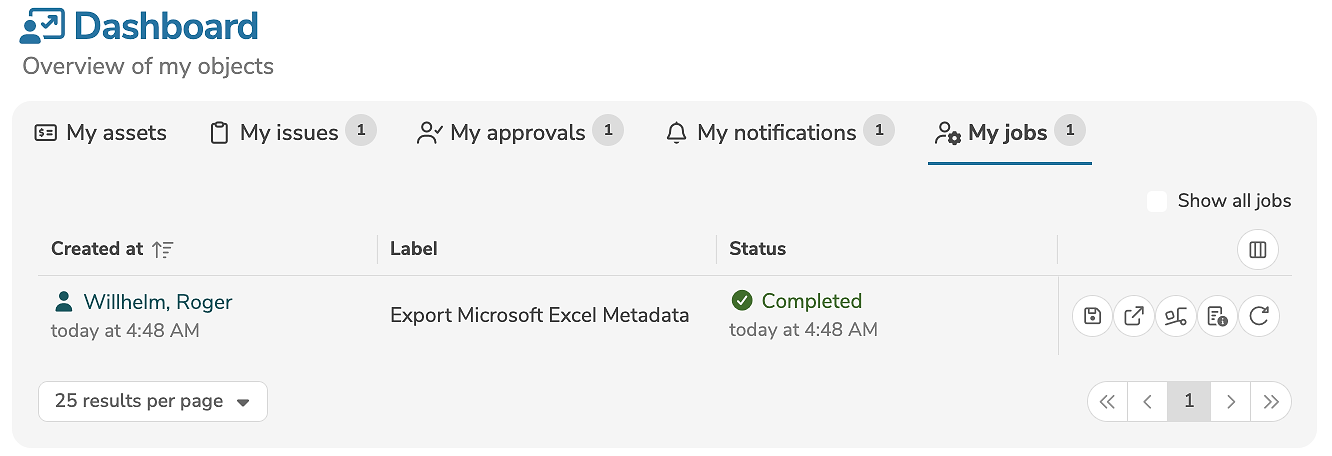
The tab "Jobs" displays all running or completed jobs of the user.
Jobs are automatically started in the background during certain activities (e.g. when importing and exporting metadata or when deleting a collection). The result of a job can be queried or downloaded when the job has completed.
- For a job that has provided data for download (e.g. exporting models and metadata or generating reports), the provided data can be reopened or saved.
- For a job that has uploaded data (e.g. importing models), the uploaded file can be retrieved.
- The parameters of a job can be displayed, if necessary.
- The statistics and logs of a job can be displayed.
- A completed job can be restarted and a running job can be stopped.
A user sees all jobs started by the user, and can manage and stop only their own jobs.
By clicking Show all jobs, a user with the access level Administrator sees all jobs started by the user and all jobs from other users, as well as internal processes (e.g. approval or notification processes), and can manage and stop jobs from all users.
Diagrams
Two types of charts are available in the dashboard, where assets can be grouped either by status or by asset type. A new diagram can be created by clicking on a free area with the "+" symbol. The new diagram with default settings appears and can be adapted as required.
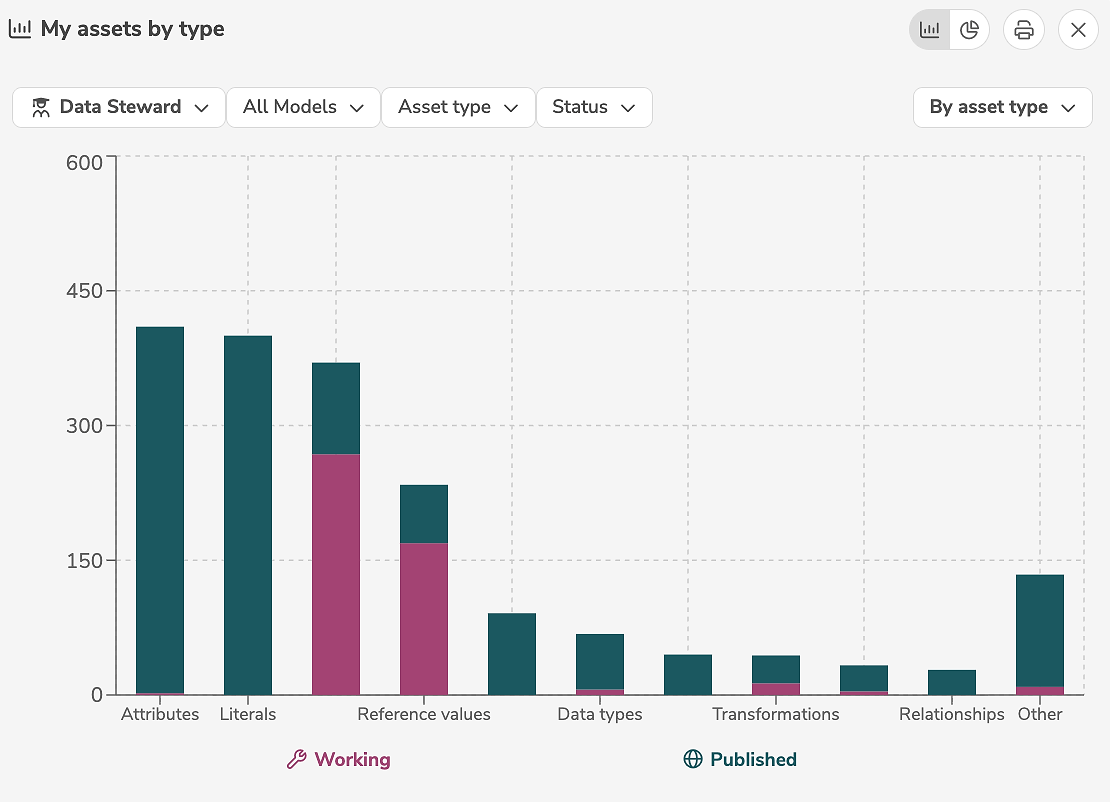
The buttons  can be used to specify whether the diagram should be displayed as a bar chart or as a pie chart.
Clicking on the contents of the diagram opens the search page and displays the related assets.