Workflows
A workflow defines the possible statuses and status transitions of elements contained in the assigned models. In compliance with the role-based responsibility and authorization concept, a workflow determines which roles may assign responsibilities or trigger status transitions, as well as which roles participate in any required approval and voting process.
In addition, specific roles that are allowed to import models can be defined.
Users with the access level Editor are authorized to import models, if they are responsible for the model in one of these roles.
Only users with the access level Administrator are authorized to create, edit, or delete workflows.
Add workflows
Workflows are specified in the subpanel of the tenant.
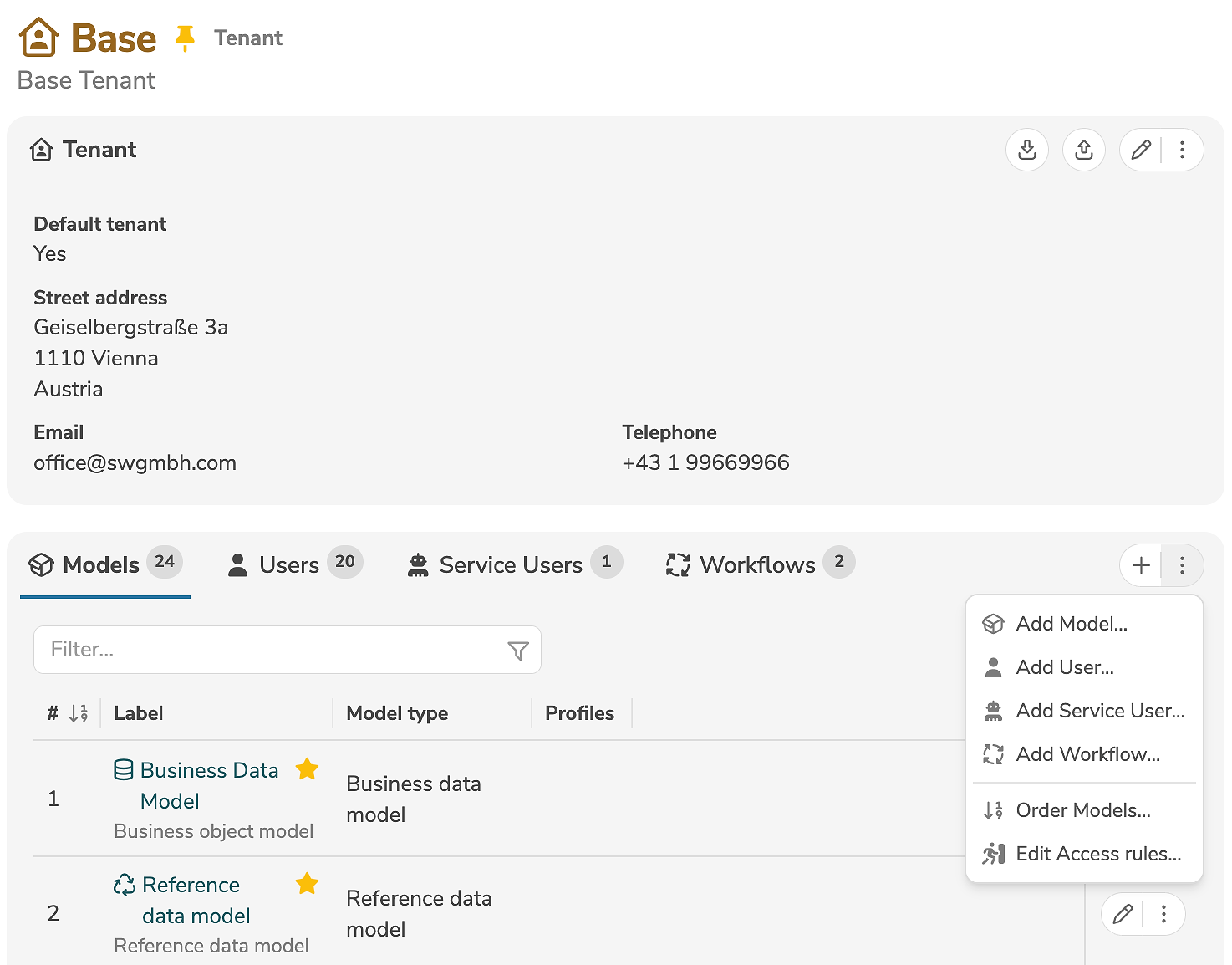
A new workflow is added by clicking the tab "Workflows" and the icon "+" (or by selecting "Add Workflow..." in the menu).
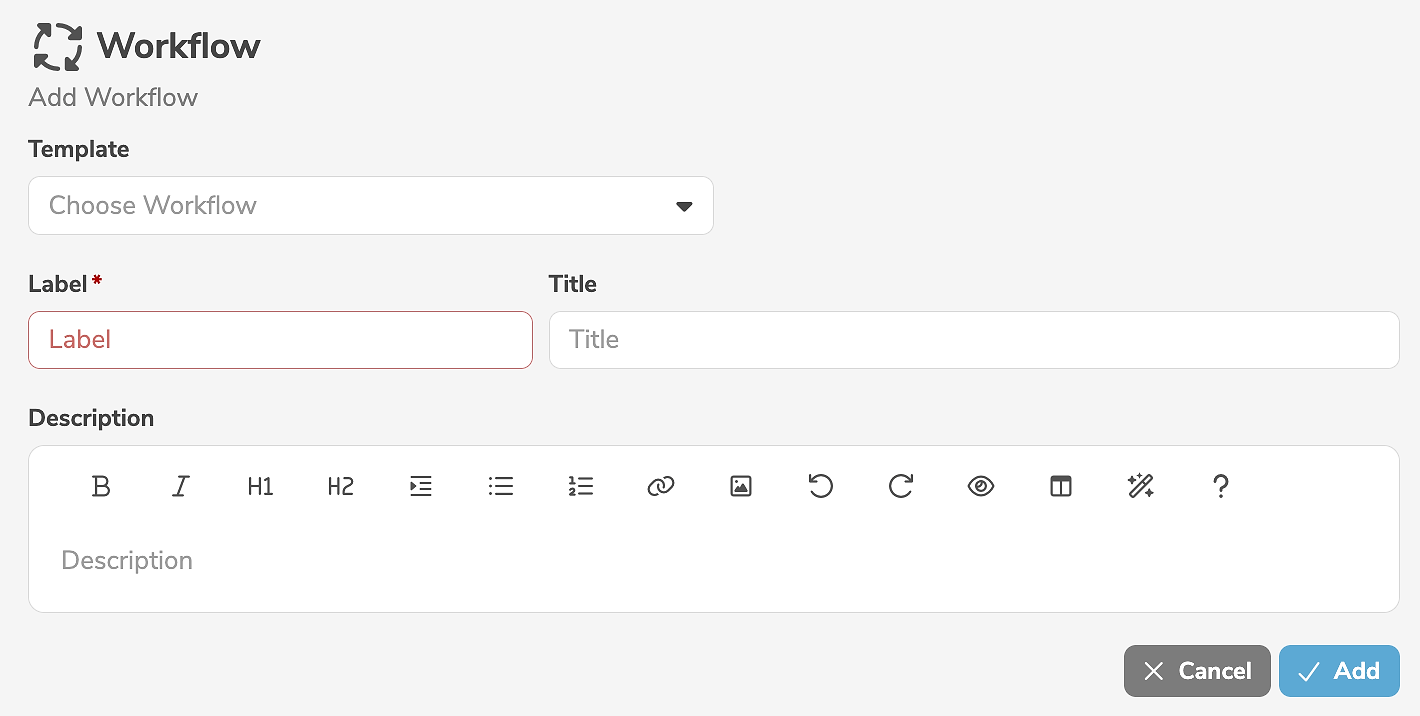
It is mandatory to assign a label to the workflow. In addition, a title and a description can be specified. An existing workflow can be selected as a template, if required.
Clicking "Add" creates the workflow.
If a template is selected, the new workflow is created as a copy of the template. Otherwise, a minimal workflow is created by default, which has only an initial and a final status.
When a new database or tenant is created, a workflow with the label Default Workflow is created by default.
This workflow contains status definitions for all available statuses as well as transitions (without approval) between all status definitions.
Edit workflows
A workflow is edited in the main panel of the workflow, by clicking the edit icon (or by selecting "Edit Workflow" in the menu).
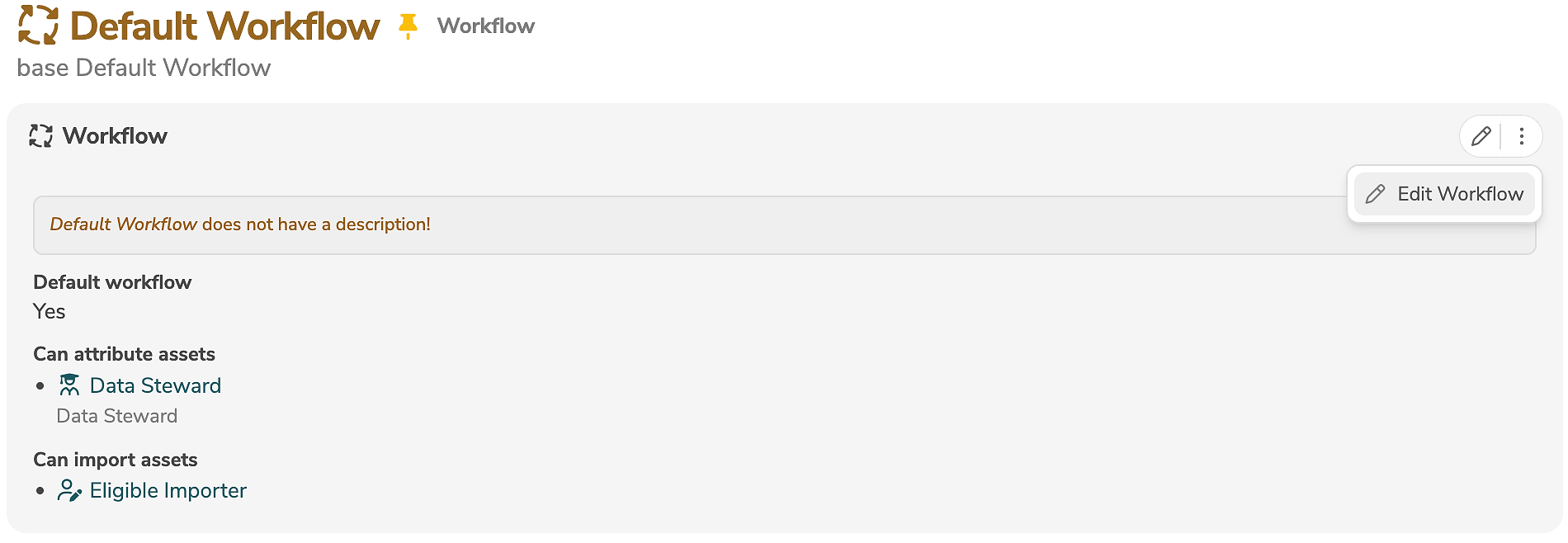
The edit mode allows the modification of all input fields. Following the role-based responsibility and authorization concept, it is possible to define which roles are authorized to create, edit, or delete responsibilities in the assigned models.
In addition, roles that are allowed to import models can be defined.
Users with the access level Editor are authorized to import models, if they are responsible for the model in one of these roles.
When importing with the access level Editor, all other assignments and responsibilities of the user are also taken into account, in particular which elements may be created and edited.
It is recommended to define a dedicated role exclusively for importing, which is not assigned to any status transitions.
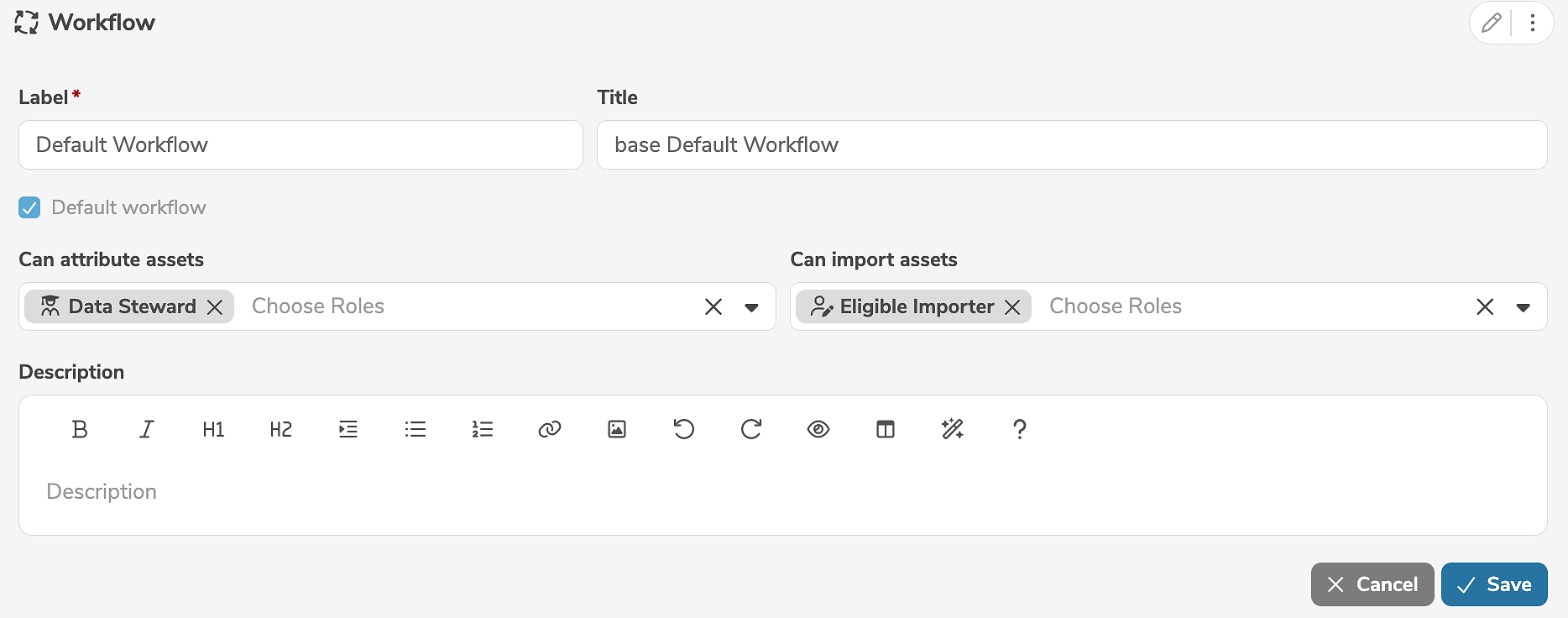
Clicking "Save" applies the changes.
A workflow can be deleted in the subpanel of the tenant, by clicking the delete icon (or by selecting "Delete Workflow" in the menu) next to the workflow.
Prior to deleting the default workflow, another workflow must be defined as the Default workflow.
Add status definitions
A status definition assigns an available status to a workflow.
Status definitions are specified in the subpanel of a workflow.
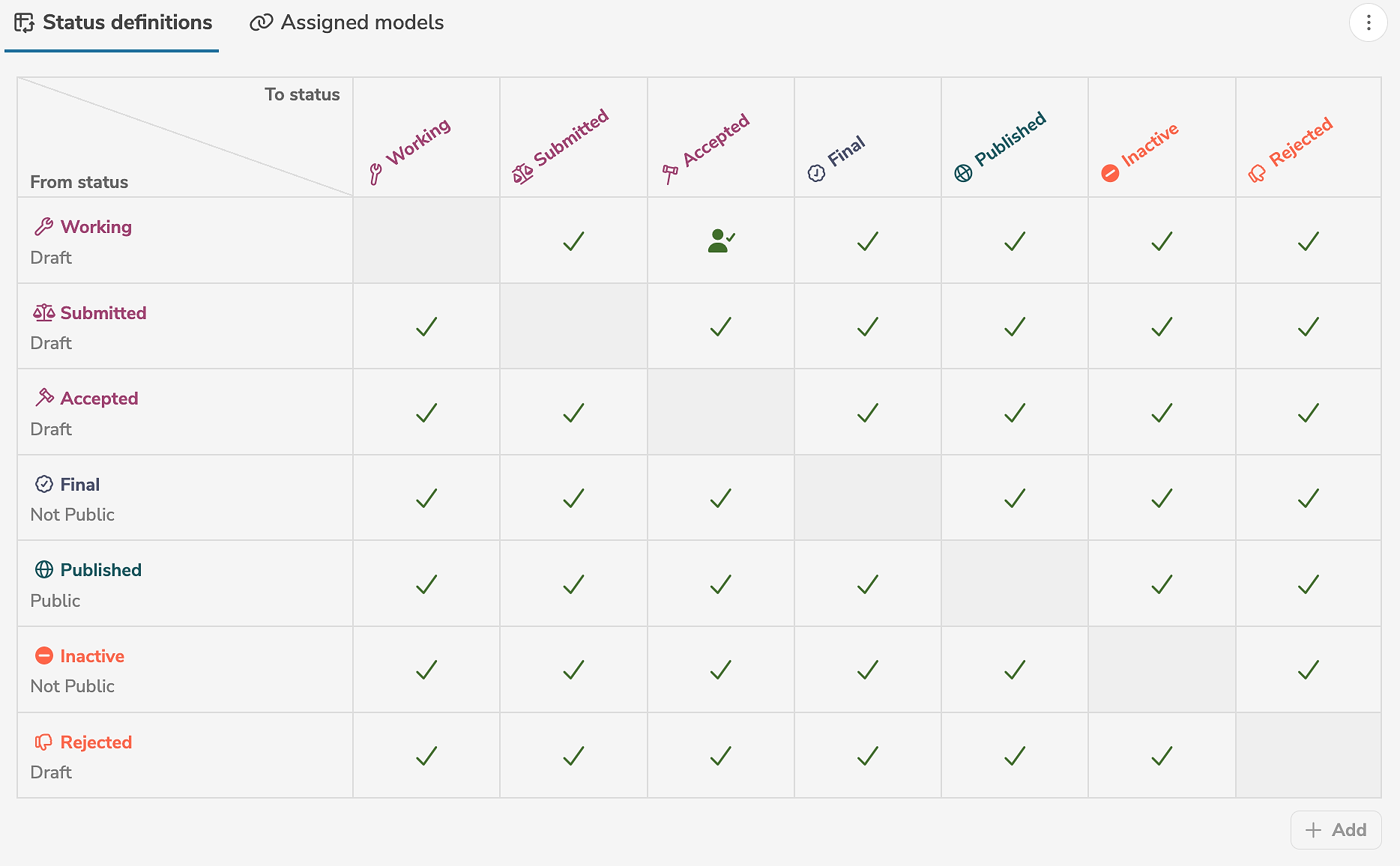
A new status definition is added by clicking the tab "Status definitions" and the icon "+" (or by selecting "Add status definition..." in the menu).
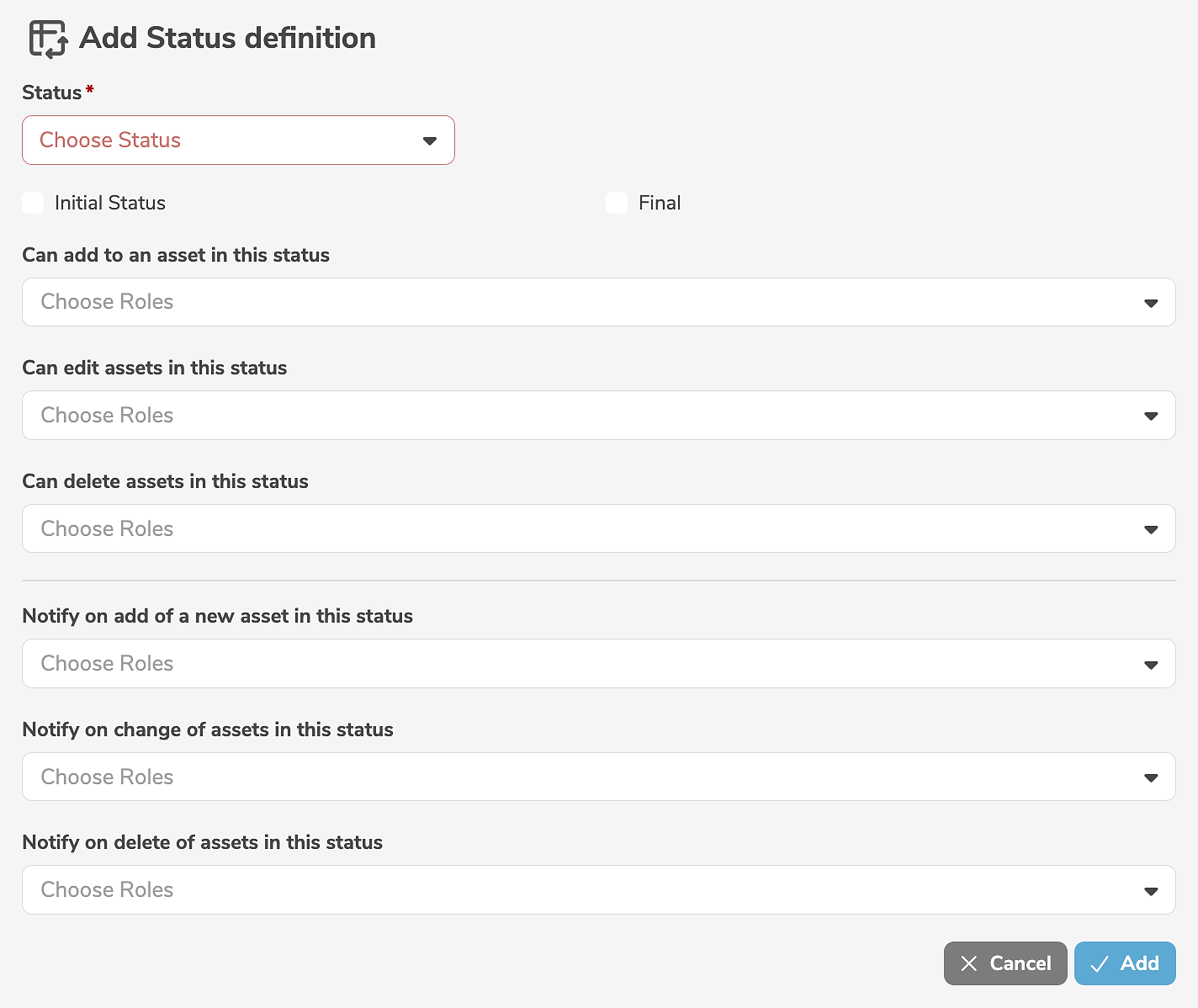
It is mandatory to select a status.
Following the role-based responsibility and authorization concept, it can be defined which roles are authorized to create, edit, or delete elements in this status.
Optionally, it can be defined which roles are automatically notified when elements in this status are created, edited, or deleted.
The status definition can be marked as Initial Status or Final, if required.
Clicking "Add" creates the status definition.
Editing and deleting elements is still contingent on the user's access level in compliance with the role-based responsibility.
Regardless of how many status definitions exist, there is always exactly one Initial Status.
The Initial Status determines which status is automatically assigned to a newly created element.
Edit status definitions
A status definition is edited in the subpanel of the workflow, by clicking the status definition (in the left column of the table).
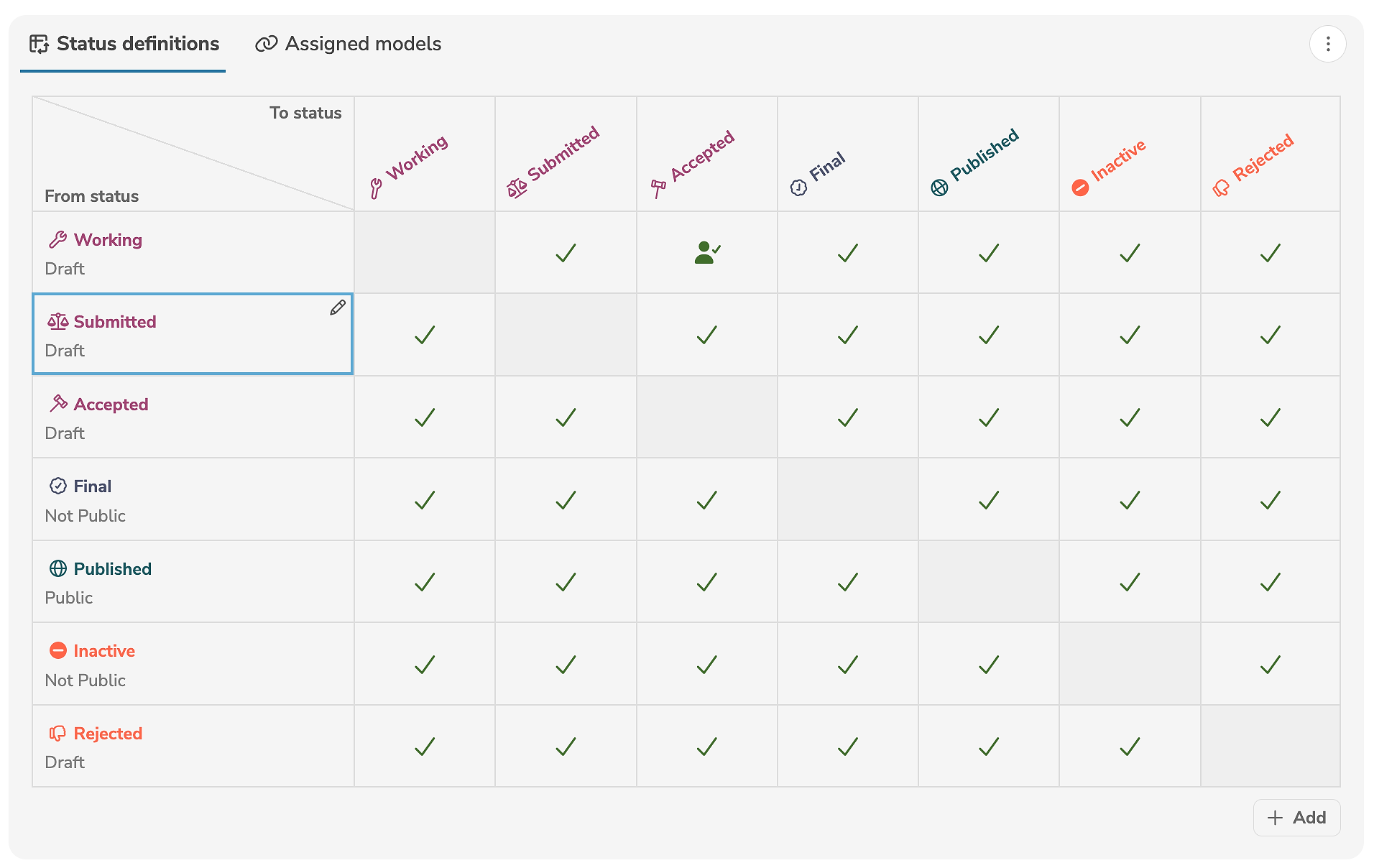
The edit mode allows the modification of all input fields.
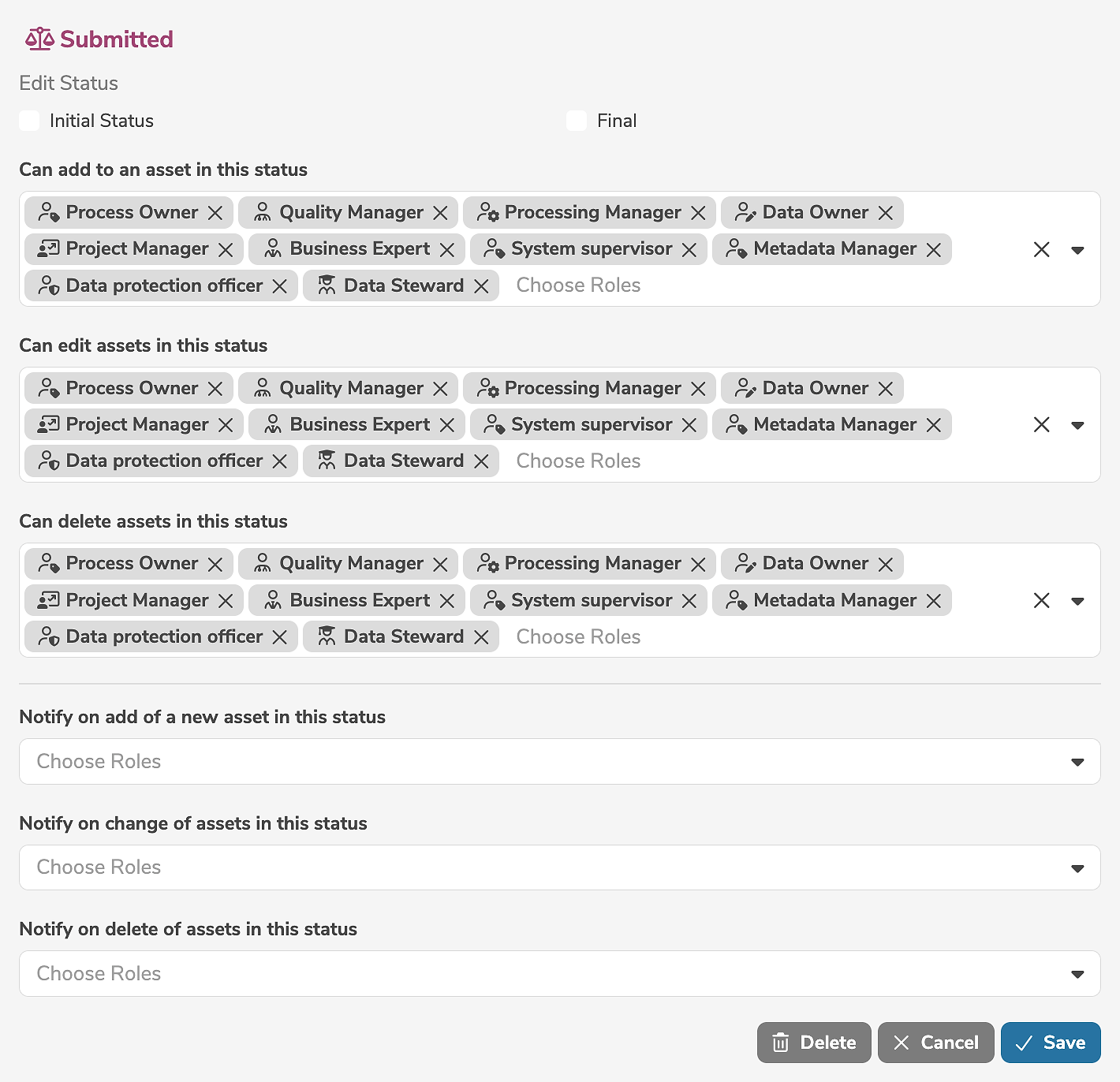
Clicking "Save" applies the changes.
A status definition can be deleted by clicking "Delete".
Edit status transitions
A status transition defines whether a transition from one status to another status is possible. If necessary, it can be specified that the status transition requires an approval.
If no transition is defined from one status to another status, the corresponding field in the table is blank.
A transition from one status to another status is displayed with the symbol  .
A status transition requiring an approval is indicated with the symbol
.
A status transition requiring an approval is indicated with the symbol  .
.
A status transition can be edited by clicking in the corresponding field.
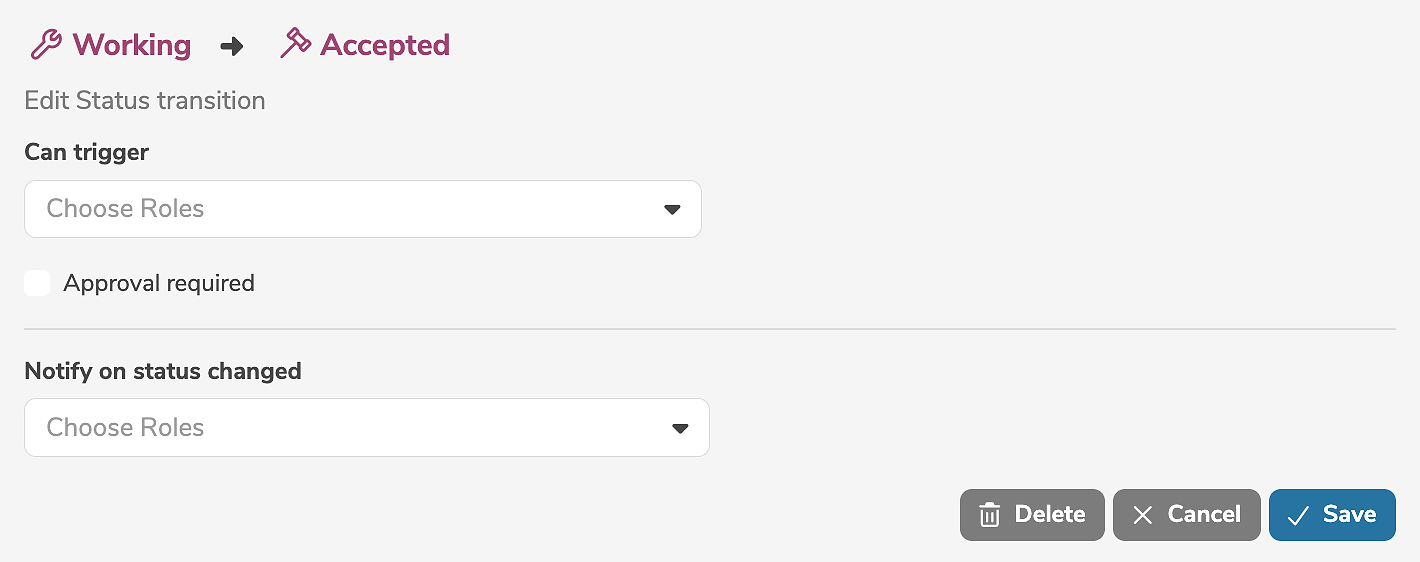
The roles that can trigger the status transition can be specified. Optionally, the status transition may require an approval. It can be defined which roles are automatically notified when the status transition is triggered.
Clicking "Save" applies the changes.
A status transition can be deleted by clicking "Delete".
Approval
A status transition may require an approval. If required, the edit mode of the status transition is extended by additional input fields.
A status transition with an approval automatically starts a vote. The persons eligible to vote are determined based on the roles defined here and on the roles assigned in the responsibility of the element.
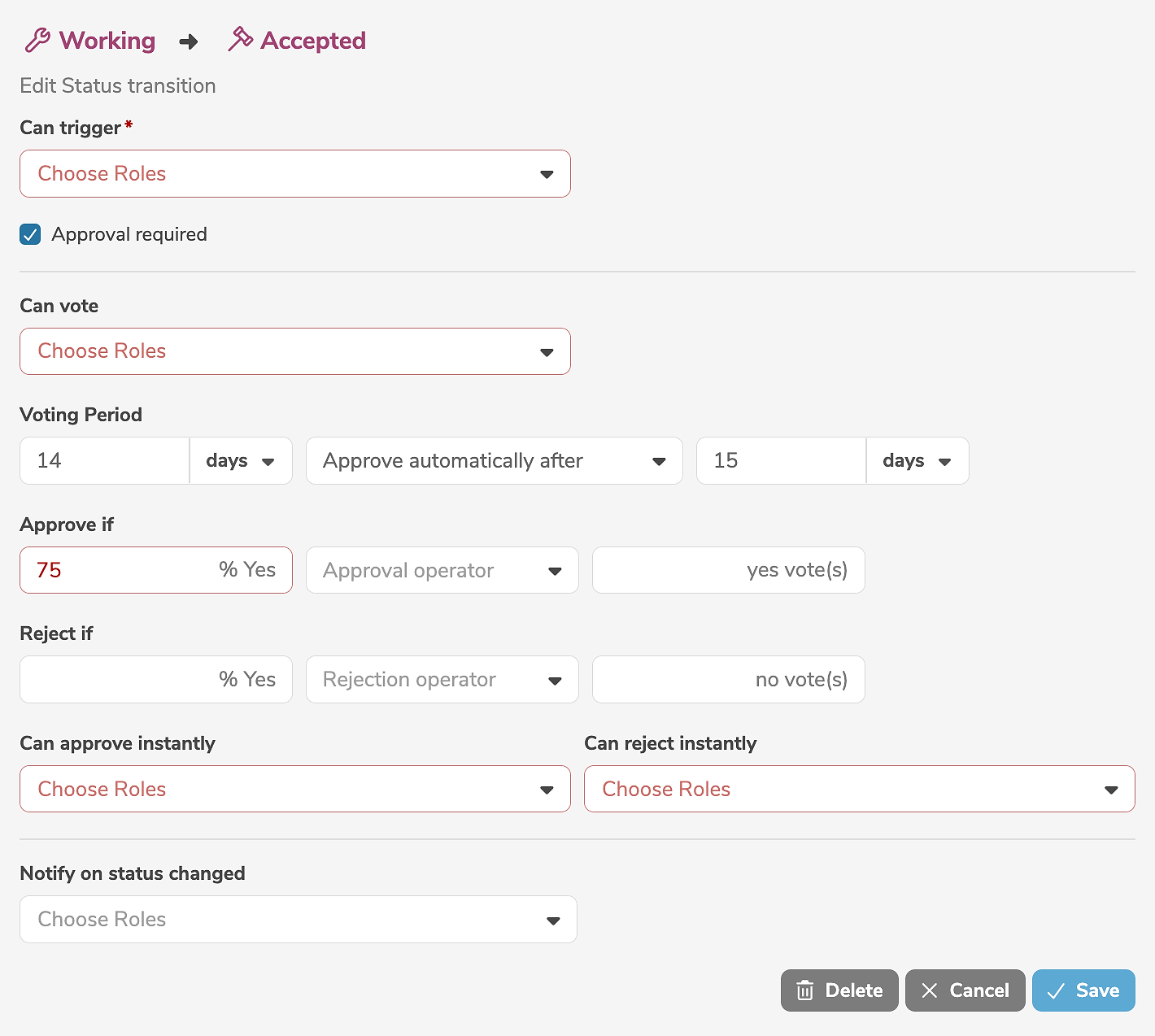
It is mandatory to select the roles that participate in the vote.
The voting period must be specified as well as whether to approve or reject the transition if neither the approval nor the rejection criteria is met.
The approval and rejection criteria define how many Yes or No votes (in percent or count) are required to approve or reject the transition.
Optionally, it is possible to defined which roles may override the vote and instantly approve or reject the status transition.
Add workflow assignments
The assignment of a model to a workflow determines which workflow is applied to the model and its elements.
Models are assigned in the subpanel of a workflow.

A new workflow assignment is added by clicking the tab "Assigned models" and the icon "+" (or by selecting "Add workflow assignment..." in the menu).
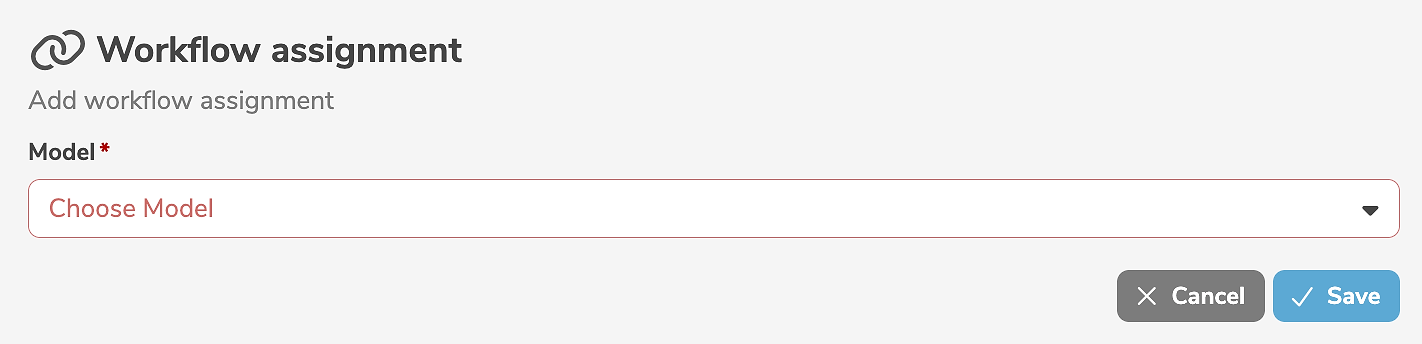
Clicking "Save" creates the workflow assignment.
A workflow assignment can be deleted by clicking the delete icon (or by selecting "Delete workflow assignment" in the menu) next to the model.
If a model is not explicitly assigned to any workflow, it is implicitly assigned to the default workflow.